
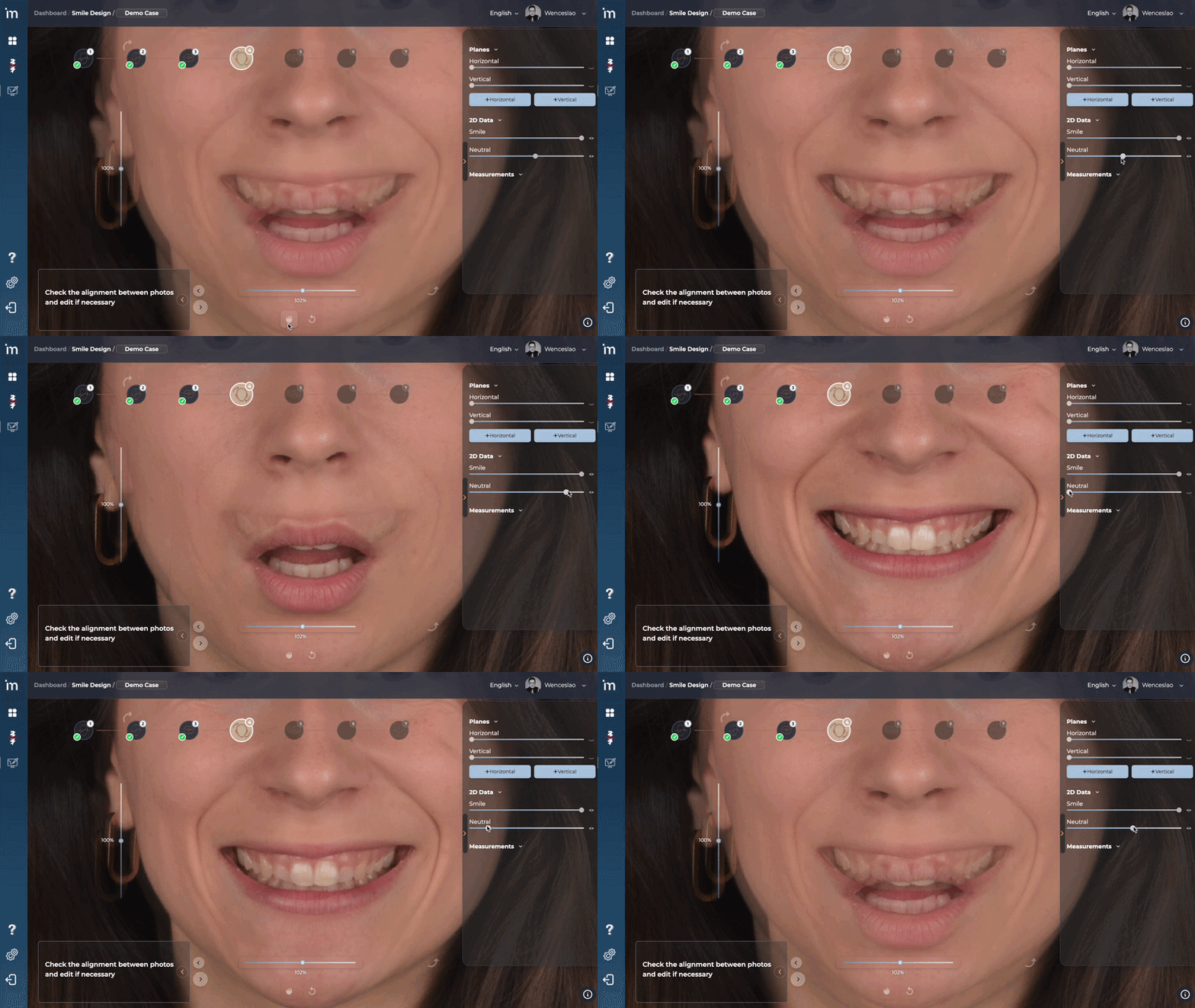
On this screen, the algorithm MovumStudio® will automatically align the smile photo with the rest photo.
To perform the alignment, the algorithm takes as a reference the amount of tooth exposed in both photographs.
For patients with negative rest, the algorithm will use facial anatomical points. In these cases it is likely that some manual adjustment to the orientation of the rest photograph will be necessary.
Controls
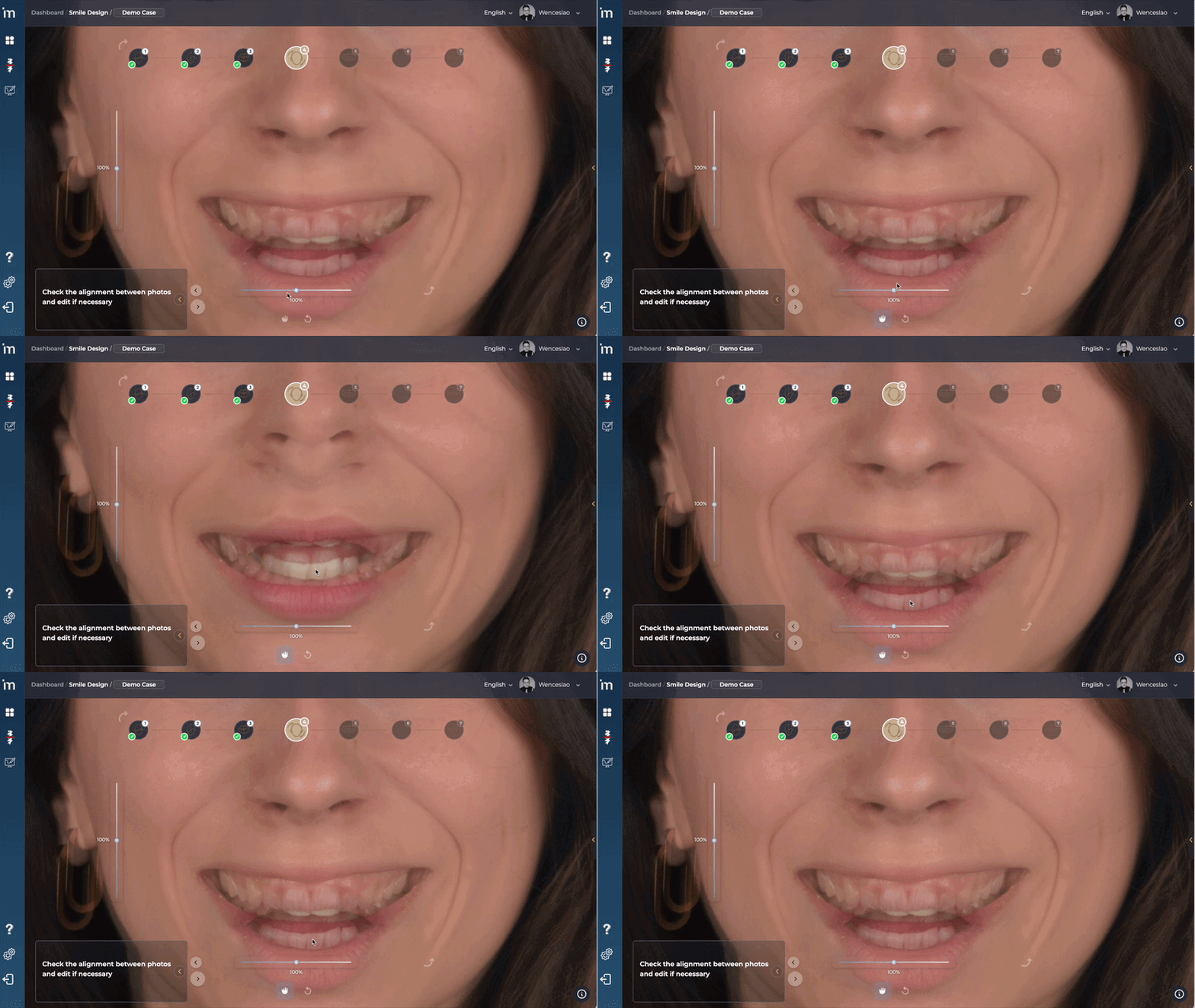
1️⃣ PAN Movement
By clicking on the PAN button you can move the still photo to align it correctly with the smile photo.
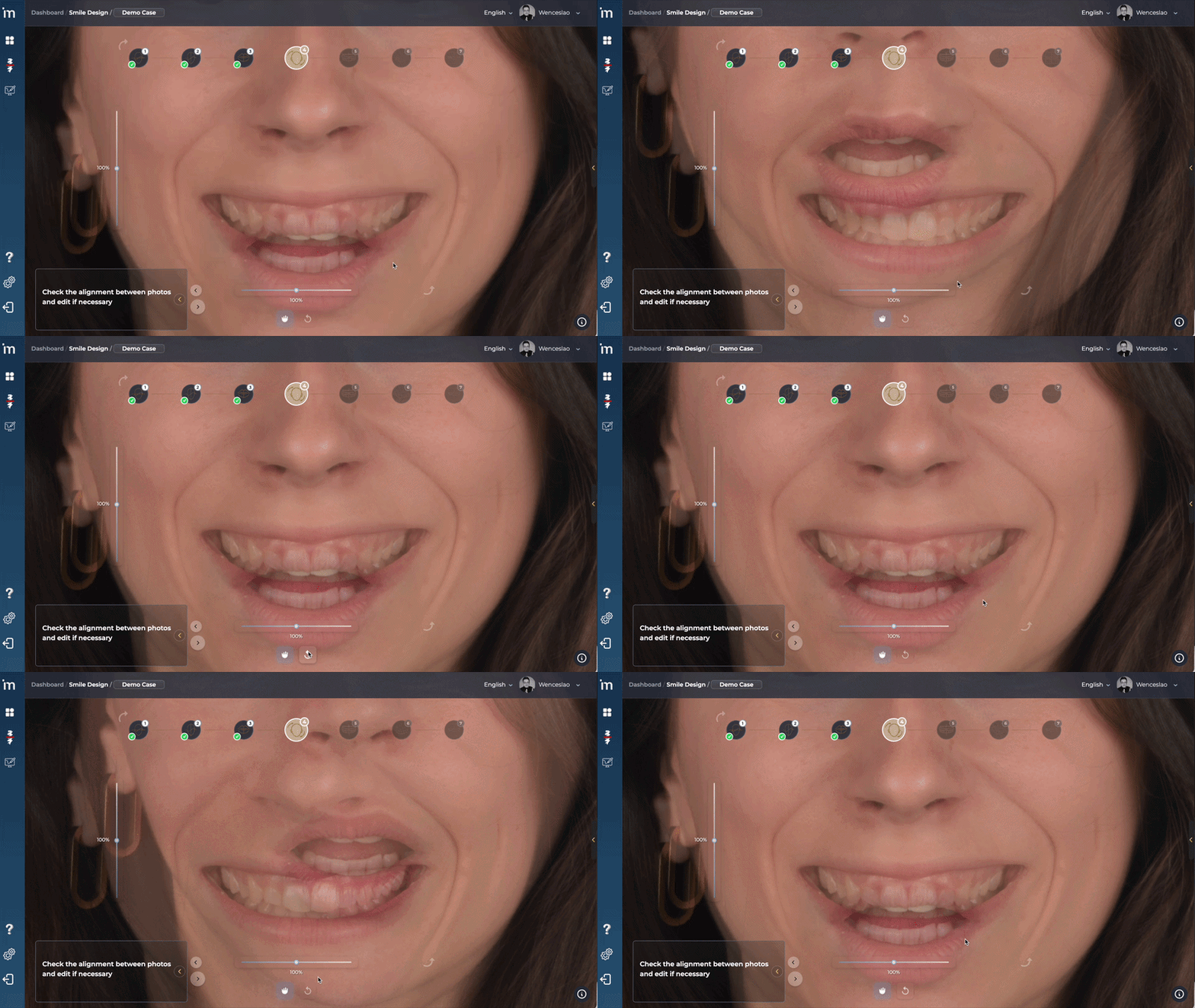
2️⃣ Restore
In case you want to return to the initial situation, you must click on the reset icon.
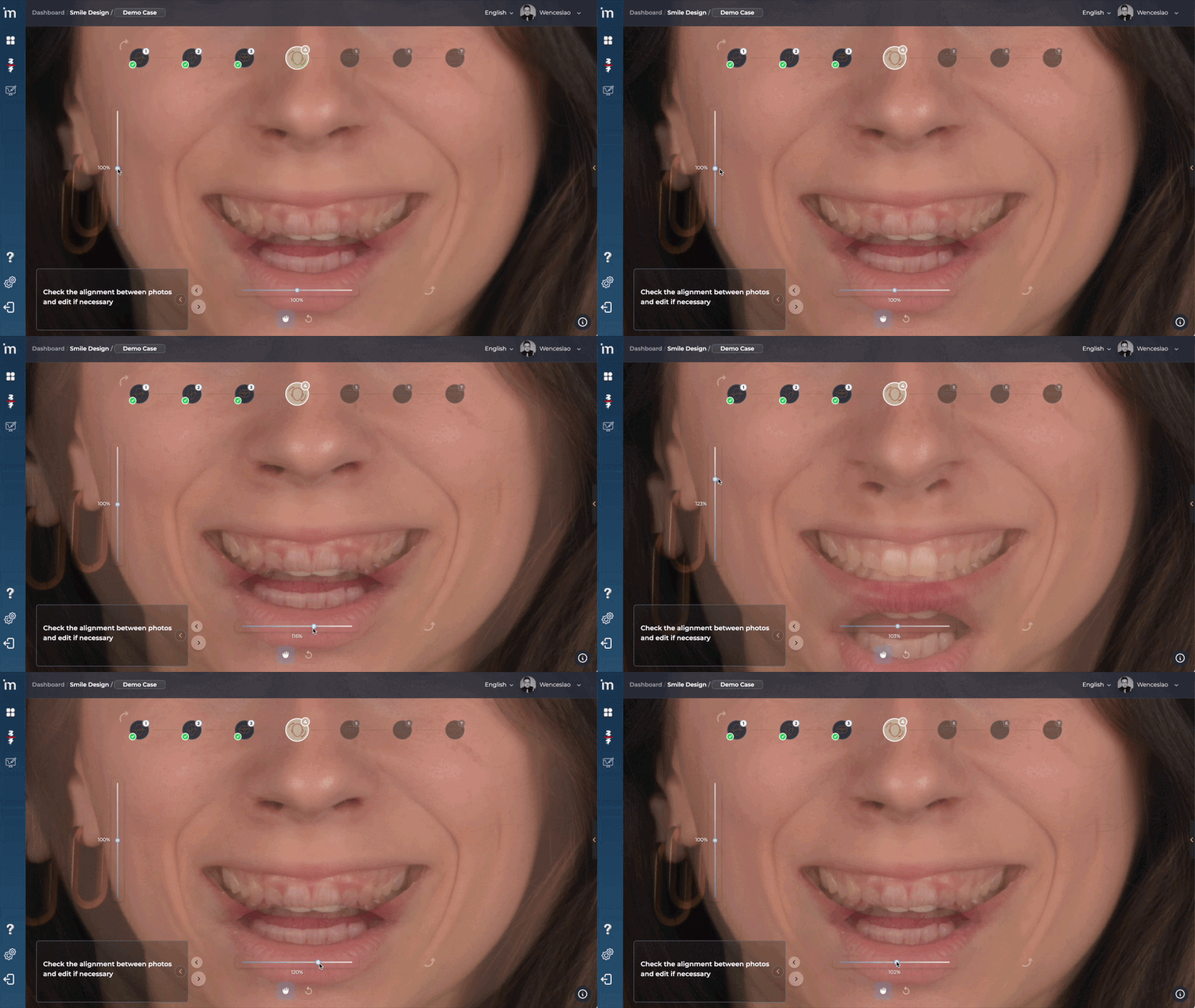
3️⃣ Horizontal/Vertical Deformation
There are two bars with a type button slider, one vertical and one horizontal.
Moving the slider You can warp the photograph at rest in a vertical and/or horizontal direction.
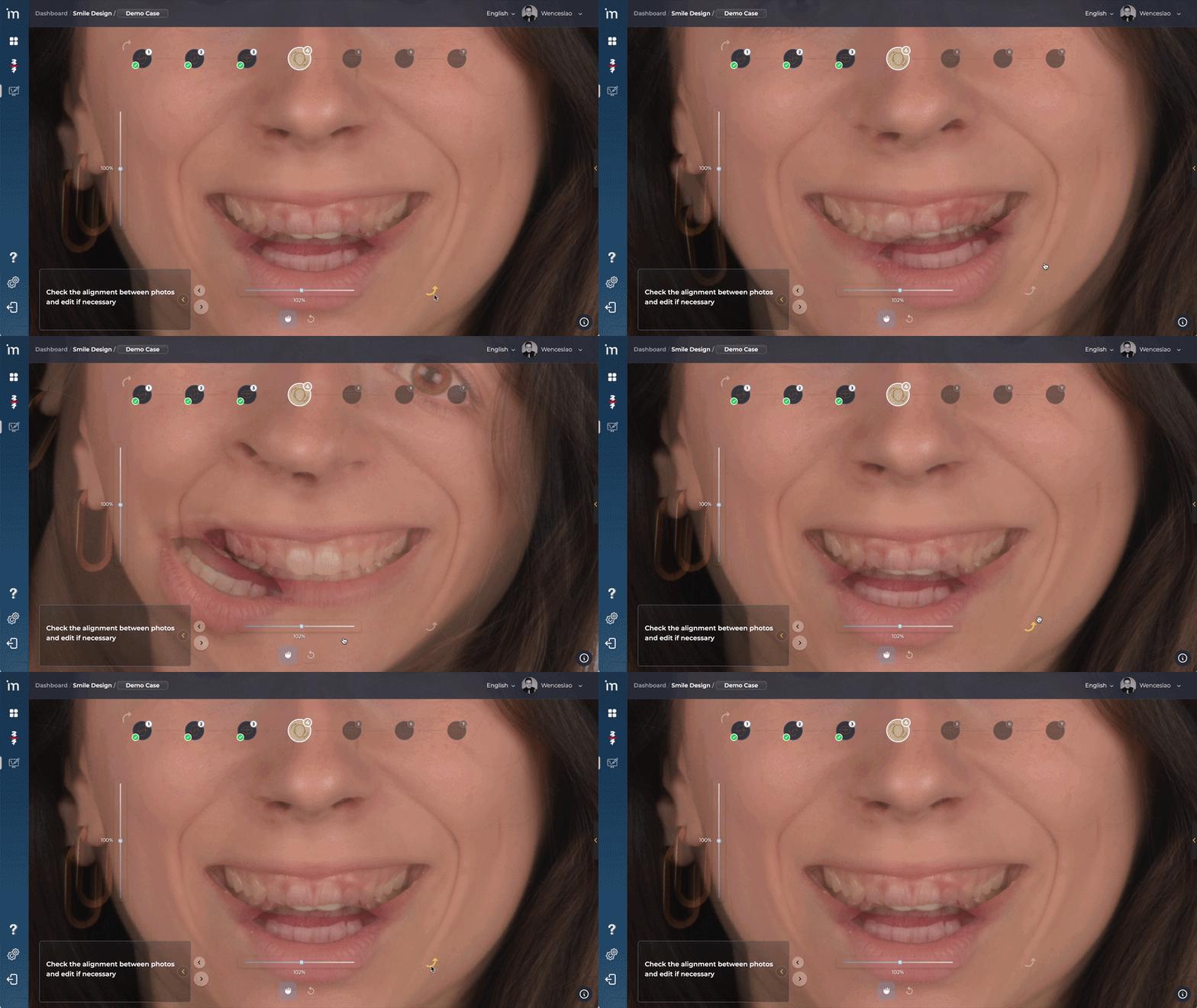
4️⃣ Rotation
In the upper left and lower right corners there are arrows that, when clicked and moved with the mouse, allow you to rotate the image at rest, as seen in the following video.
5️⃣ Opacity
In the drop-down menu on the right you can control the opacity and display of the smile and rest images, using the slider as shown in the following video to check the correct alignment between both photographs. By default, the rest image appears less sharp so that the superimposition on the smile image can be seen.
Click the forward arrow.
➡️ Continue to STL projection