
How does it work?
The Case Manager is the section of the MovumStudio® software where you can upload all the information and files of your patients or check the status of the analysis of your implants.
The Case Manager allows you to quickly access your patients’ information or share it with your work team. In addition, it will allow you to check the status of unknown implants that you have uploaded to the platform to identify.
Below, we explain how the system works so that you can upload your patients’ files, whether to make a smile design or use our 3D CAD platform.
Step by step
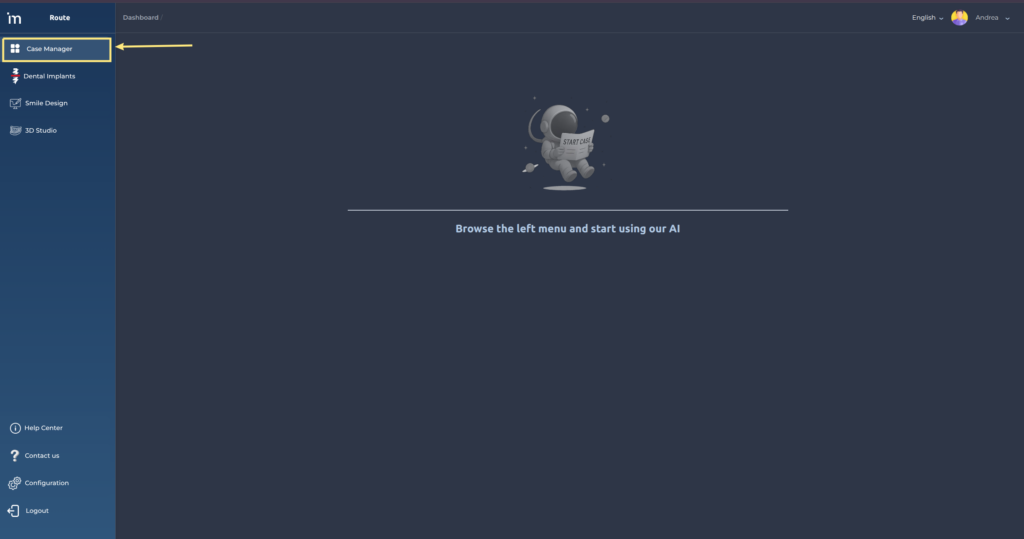
1️⃣ Access the Case Manager by clicking the drop-down menu on the left.
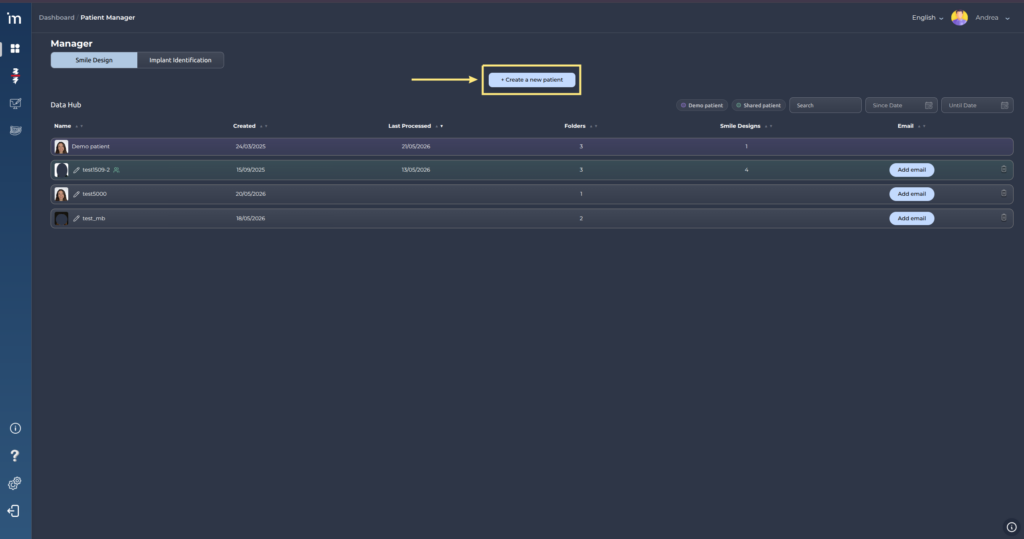
2️⃣ Then click the button Create a new patient.
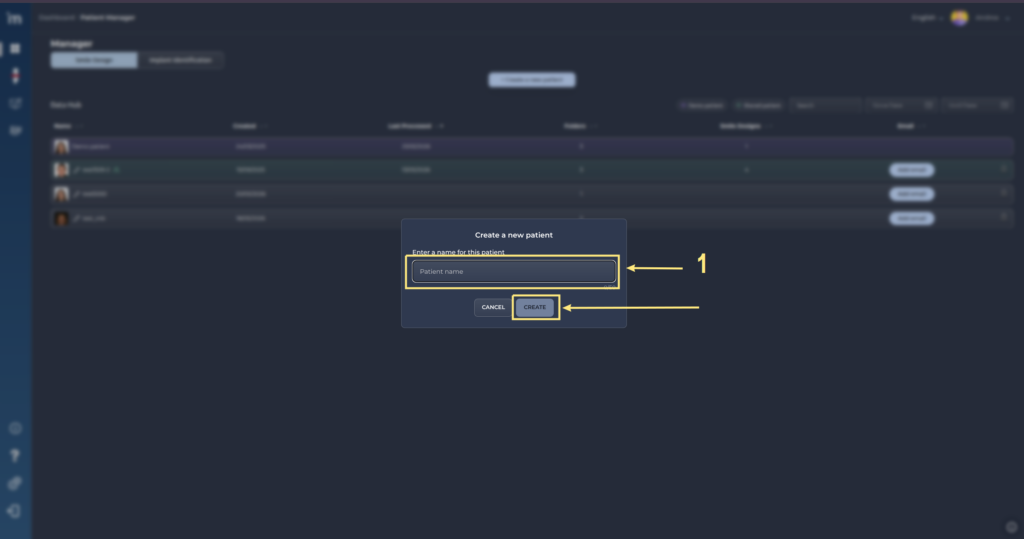
3️⃣ You will then be asked to enter a Patient Name. We recommend your patient’s medical history number. Click the button Create.
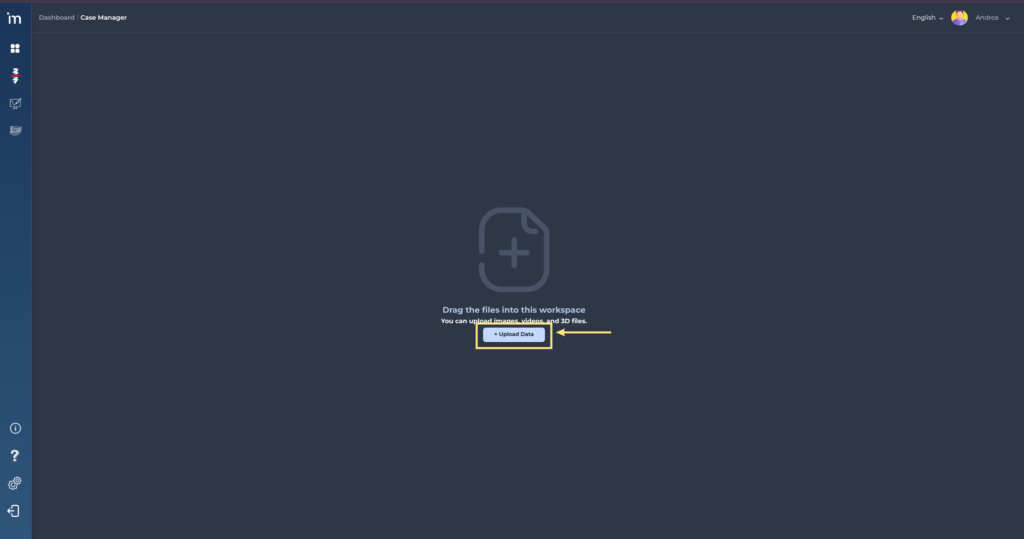
4️⃣ On the next screen you can upload your patient’s information. Click the button Upload data.
5️⃣ Select the files you want to upload to the platform and click the button Open or drag files to the screen.
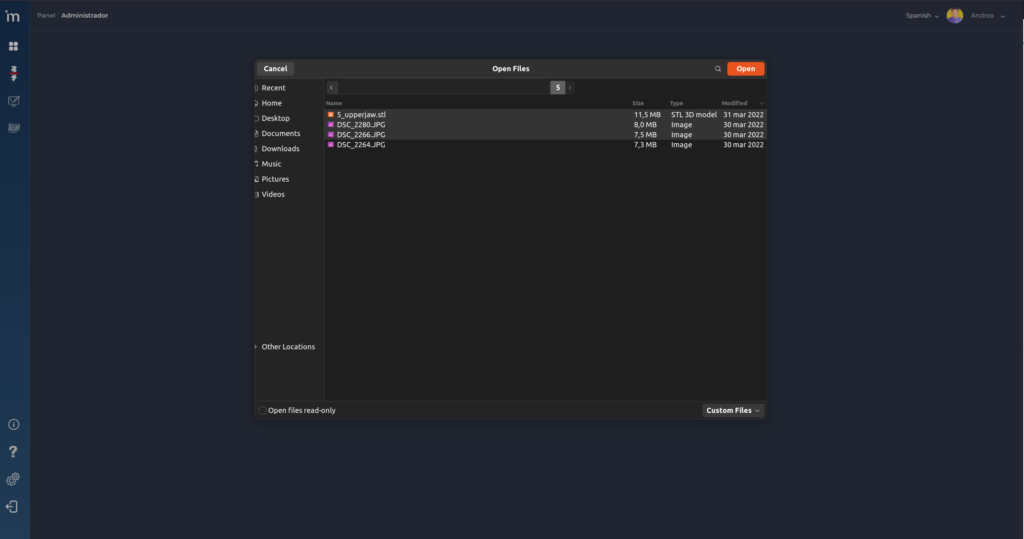
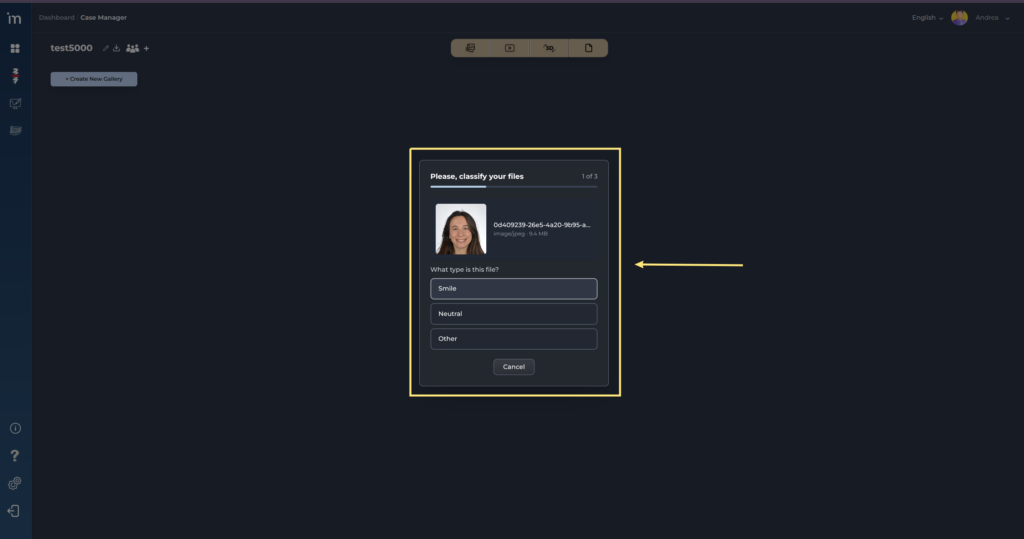
6️⃣ Now, for each file you upload, you will need to specify its type.
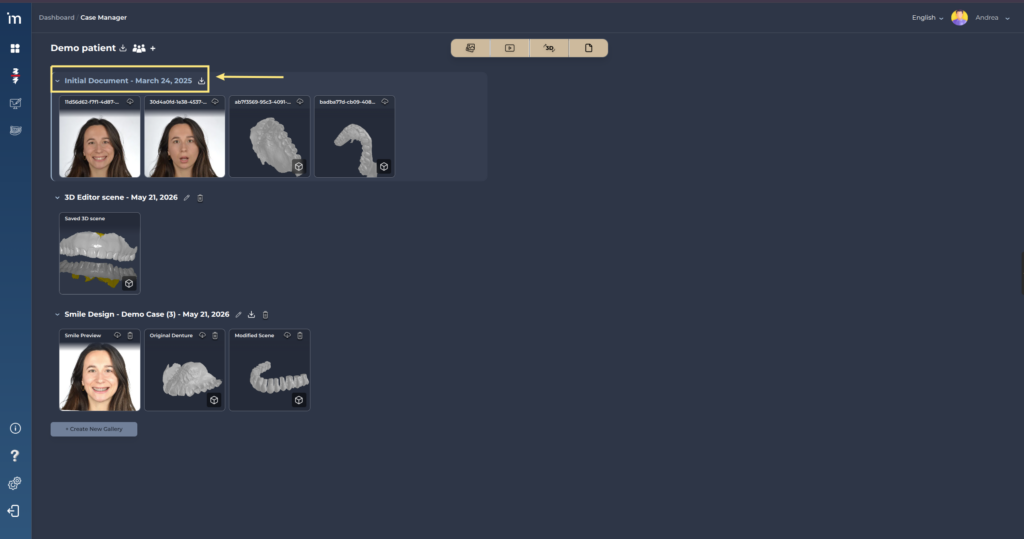
7️⃣ The files will be uploaded to the platform in a folder called Initial Document.
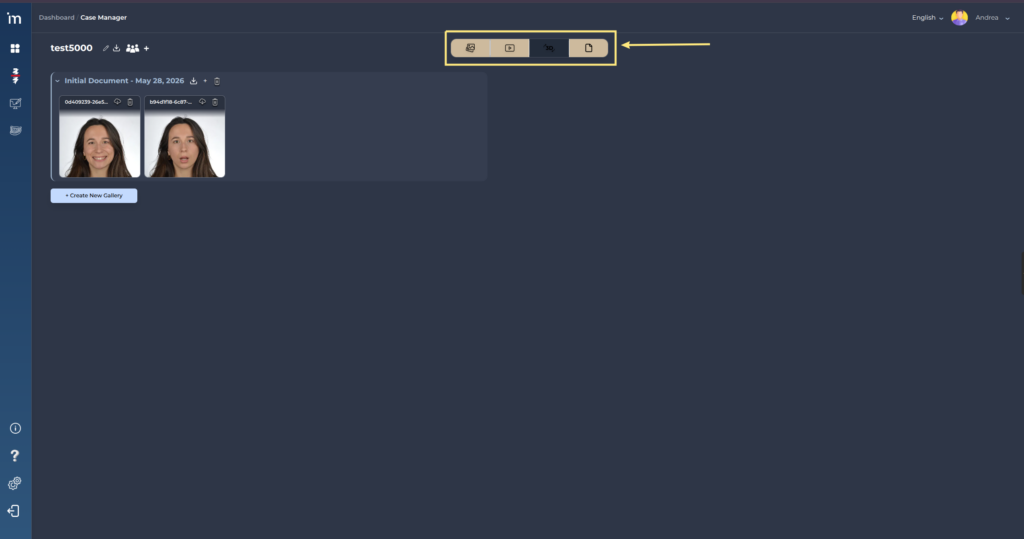
8️⃣ At the top, there is a filter that allows you to view the file types you want: images, videos, 3D models and documents. The selected file types will be displayed (highlighted).
Supported files
- .STL
- .JPG
- .JPEG
- .PNG
- .PPT
- .PPTX
- .KEY
- .ZIP