
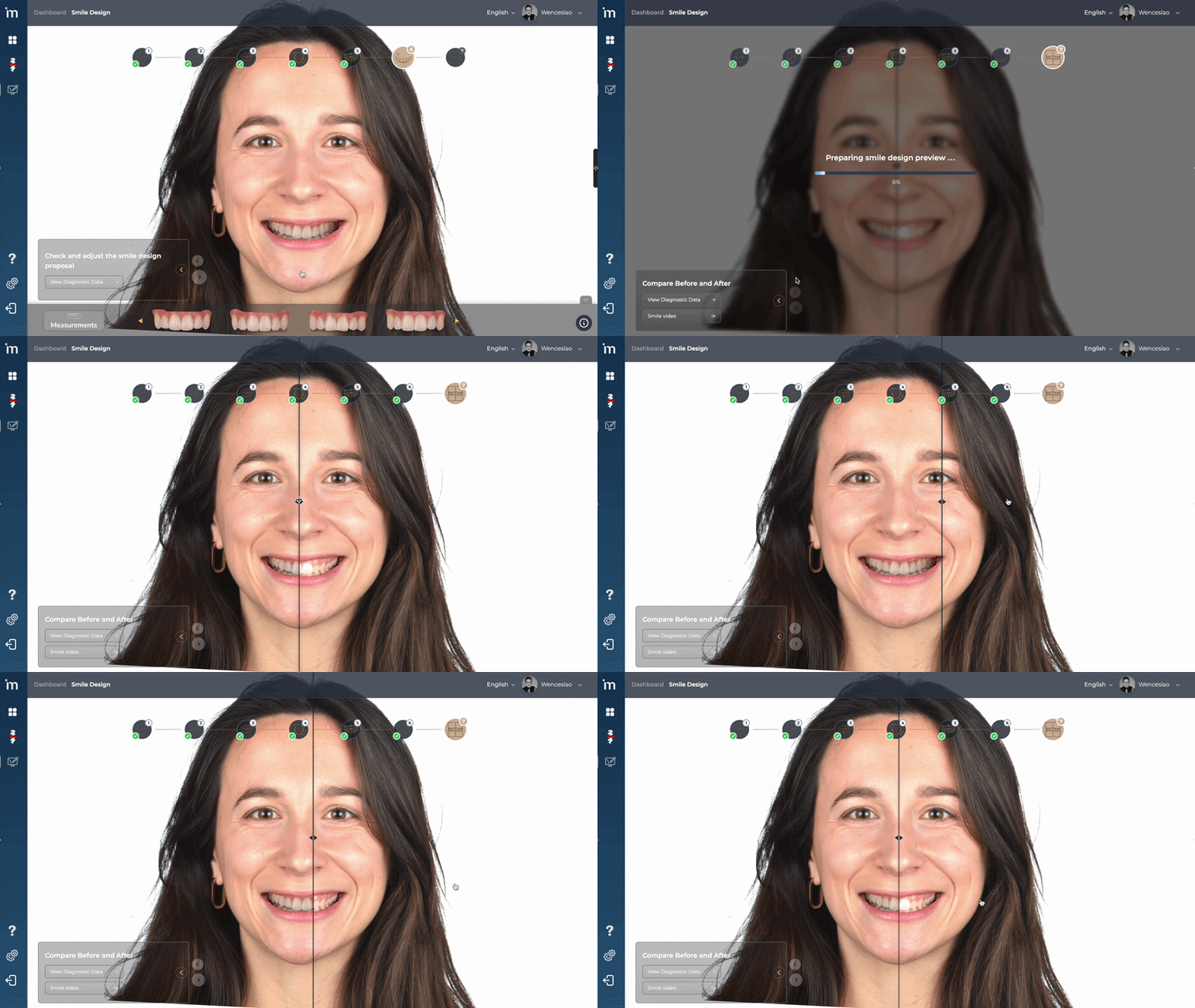
1️⃣ Before and After
This screen presents a visual comparison between before and after the smile design.
By left clicking on the vertical bar and moving it to the right and left, you can see the before and after.
2️⃣ Video simulation
After completing the smile design, there is the possibility of introducing a dynamic video of the possible final result thanks to the MovumStudio® smile design.
To do this, you must click on the button Smile video, as you see in the image below.

Our algorithm will begin to analyze all the information and in less than 5 minutes you will have the dynamic video of your patient in its corresponding folder in the Case Manager.
This will be the expected result:

3️⃣ Finish and Export
By clicking the button Finish, as seen in the image, you will finish the case and the files will be exported to Case Manager.

In your patient’s record in the Case Manager, a folder called Smile Design. This folder will contain the upper STL and the tooth library used, as well as the image of the final 2D design. If you generated the simulation video with AI you will also find it in this folder.

On the other hand, by clicking on the button View in 3D, you will access the 3D Studio where you can see the 3D smile design proposal and continue with the waxing among other functionalities. To find out more go to 3D Studio.
