
In this screen, the contour of the lip and upper teeth are automatically detected and segmented from canine to canine.
It is important to verify that the segmentation, identification and contour are correct and if necessary, make the required modifications manually. In it Assistant Located at the bottom left of your screen are buttons that enable and disable lip and teeth editing.
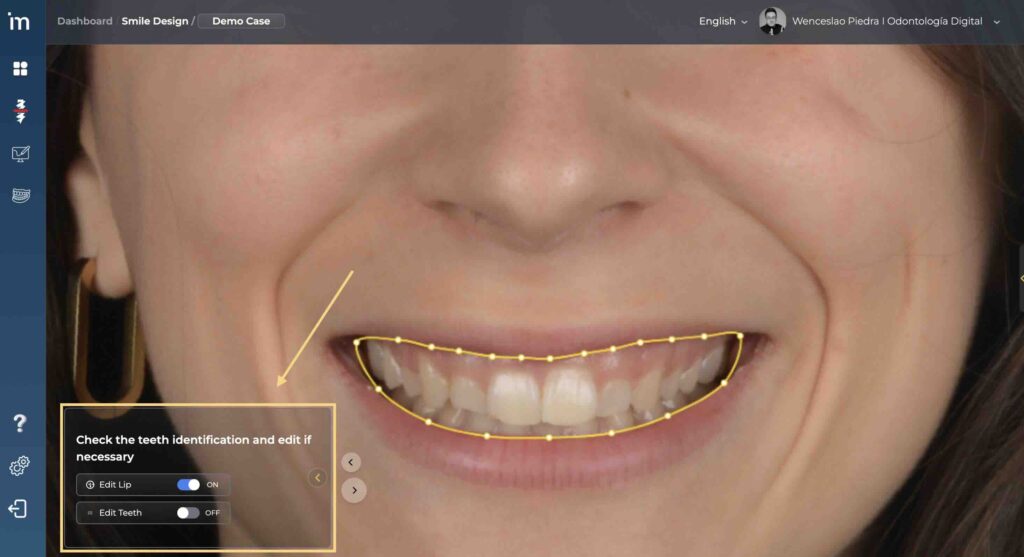
Lip Identification
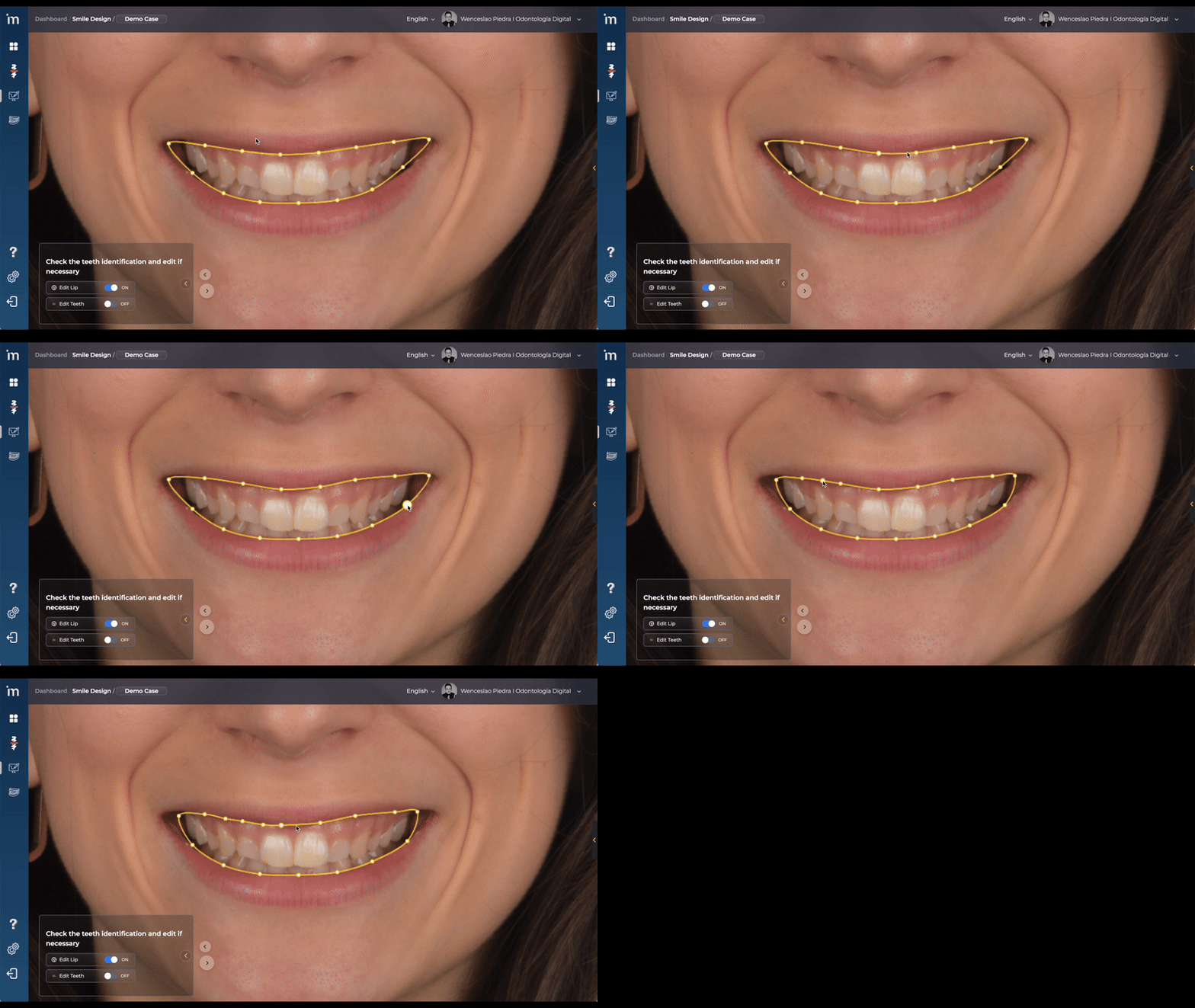
1️⃣ To modify the contour of the lip, place the cursor over any of the yellow points, left click with the mouse and drag it to the desired position to adjust the path.
2️⃣ In some cases it may be necessary to add extra points to improve the precision of the contour. Place the cursor over any section of the yellow line and left click. A new point will automatically be added that you can move and adjust.
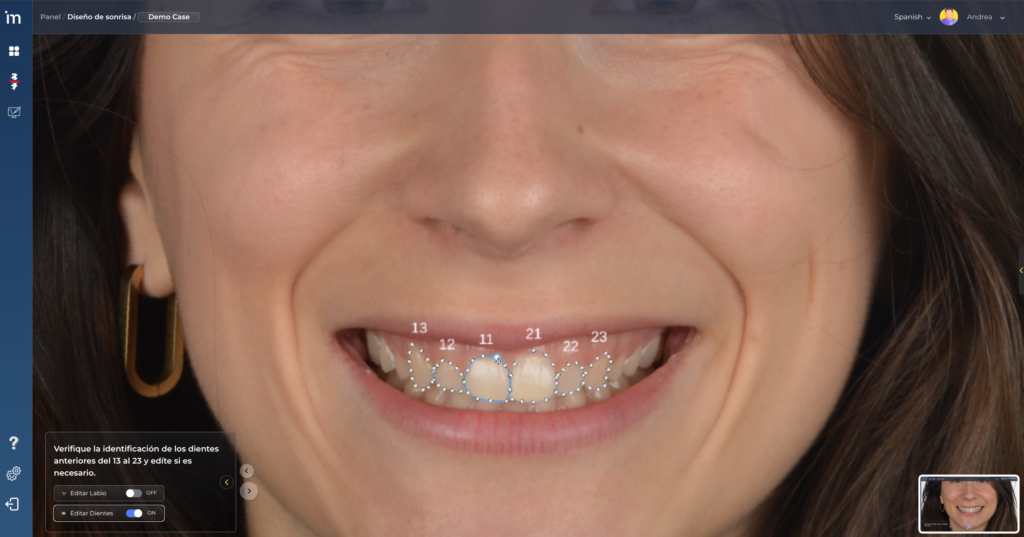
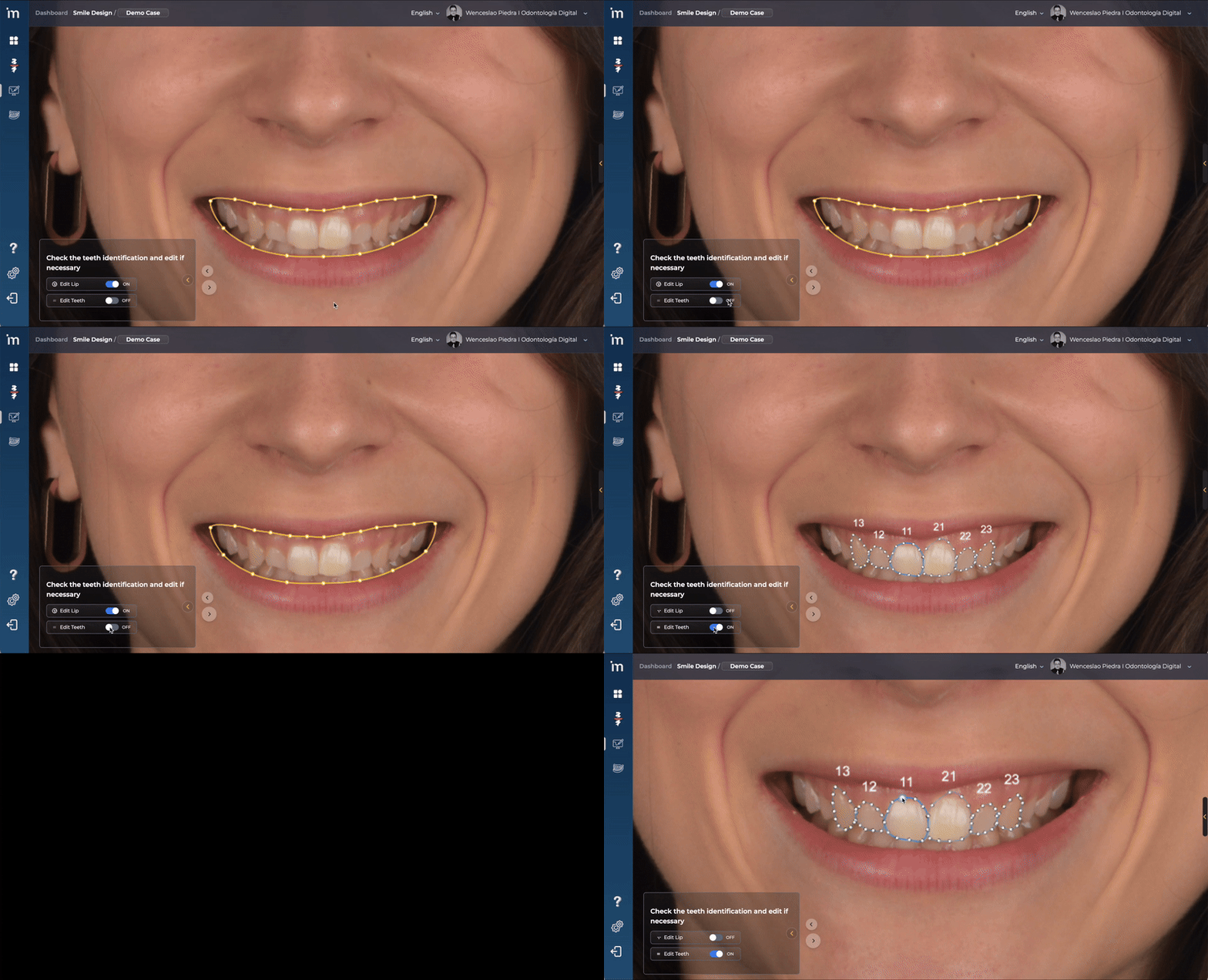
Teeth Identification
You must click the button Edit Teeth to visualize the segmentation of each tooth from canine to canine (#13 to #23). If the identification is correct you will not have to do anything.
Controls
1️⃣ Modify the outline
Place the cursor over any of the points on the tooth outline, left-click with the mouse and drag it to the desired position to adjust the path.
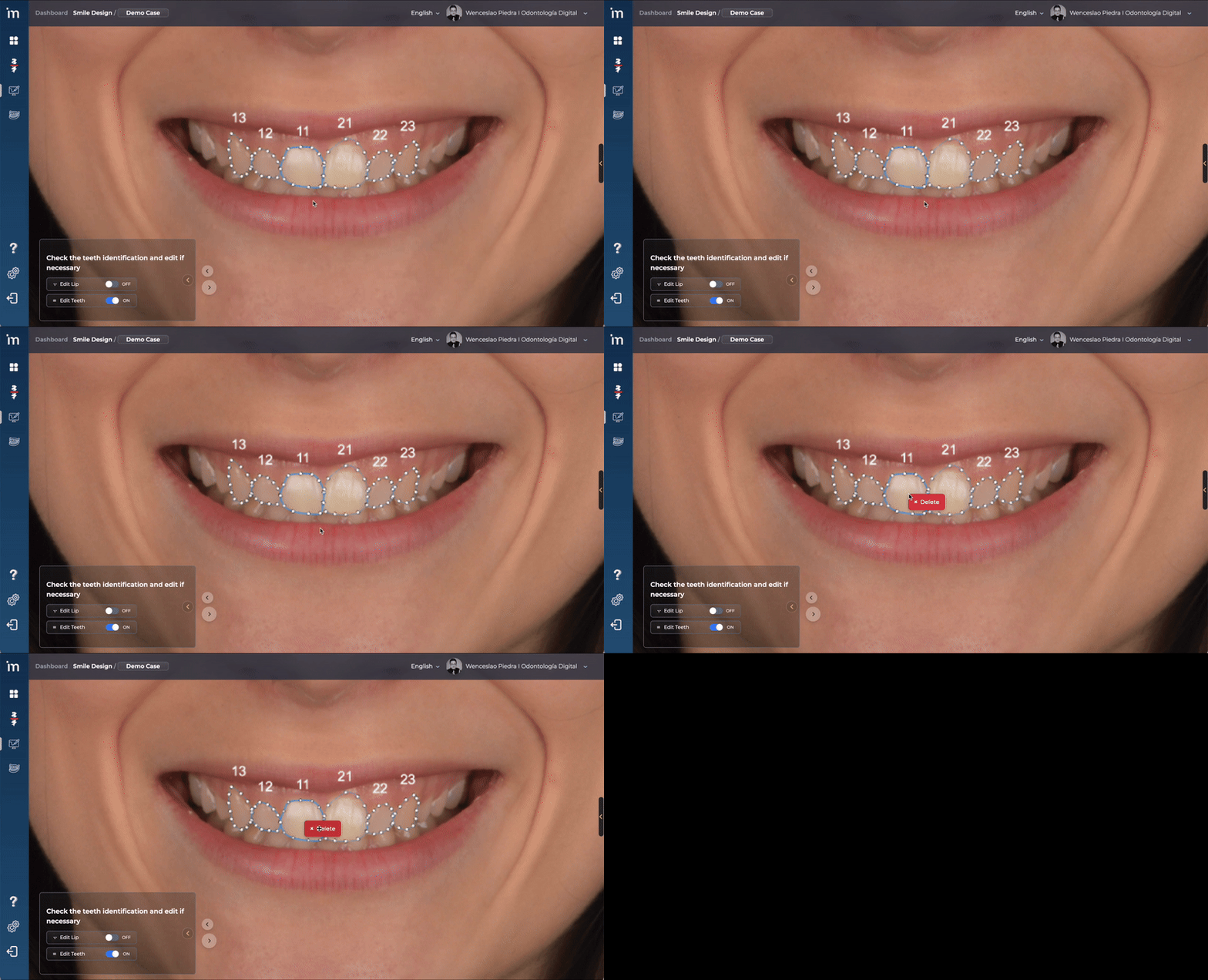
2️⃣ Remove the outline
Position the mouse over any tooth and click with the right mouse button. A button will appear Eliminate.
3️⃣ Create new outline
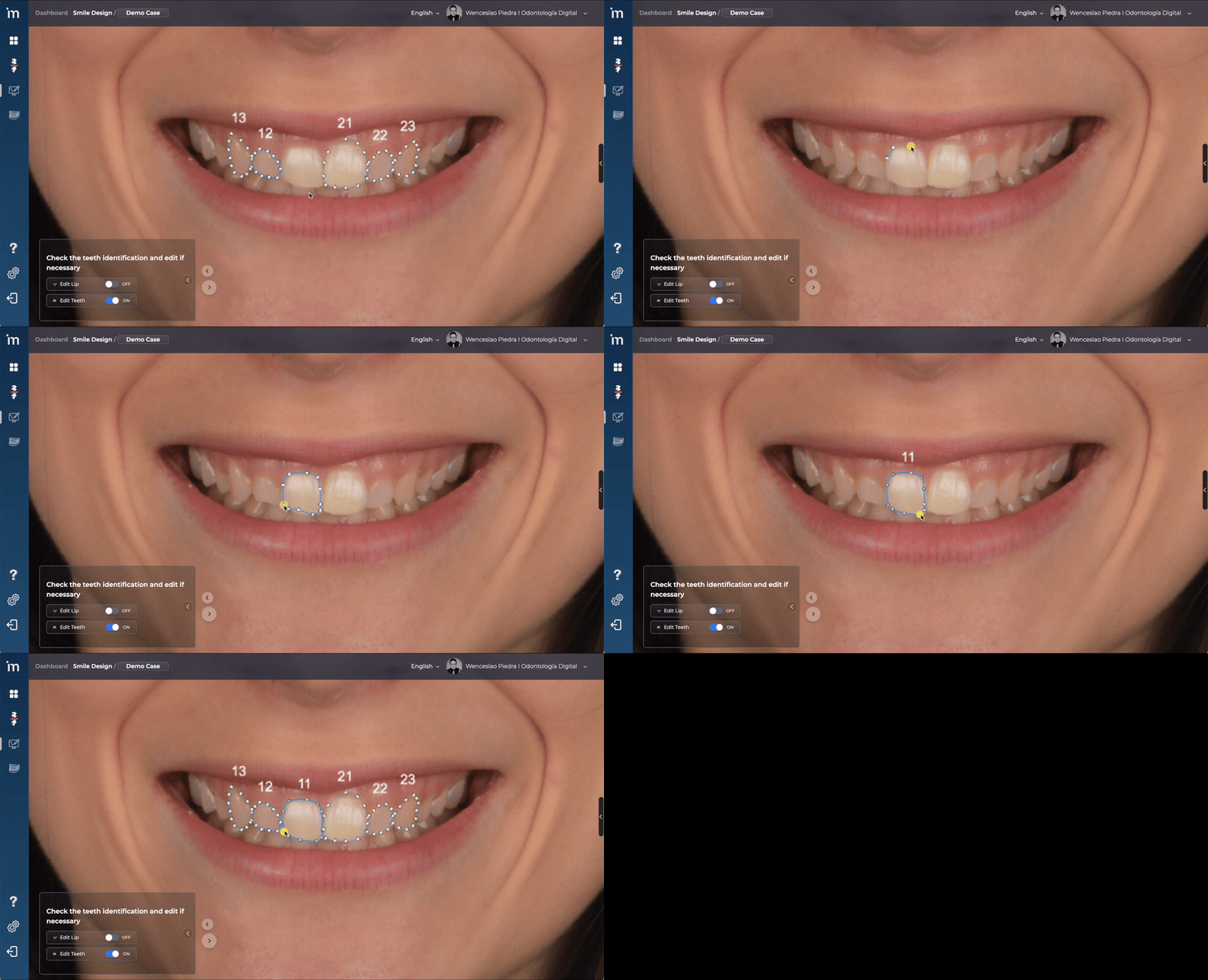
Position the mouse over a tooth from canine to canine that has not been identified.
Right click with the mouse. A button will appear to Create a new contour. Activate it.
Make the contour of the tooth and confirm the selection with the key Intro of the keyboard. He will ask you to tell him what tooth it is. Select the tooth number from the menu that appears.
Click the forward arrow.
➡️ Continue to Rest Alignment – Smile.