
After projecting the STL onto the photographs, the proposed smile is obtained, on which various modifications can be made.
Move the teeth in the Smile Design It is a combination between keyboard and mouse shortcuts.
1️⃣ move teeth
Press the key[A]to select all teeth. Without stopping pressing the key[A], left click with the mouse on the teeth and move them en masse.
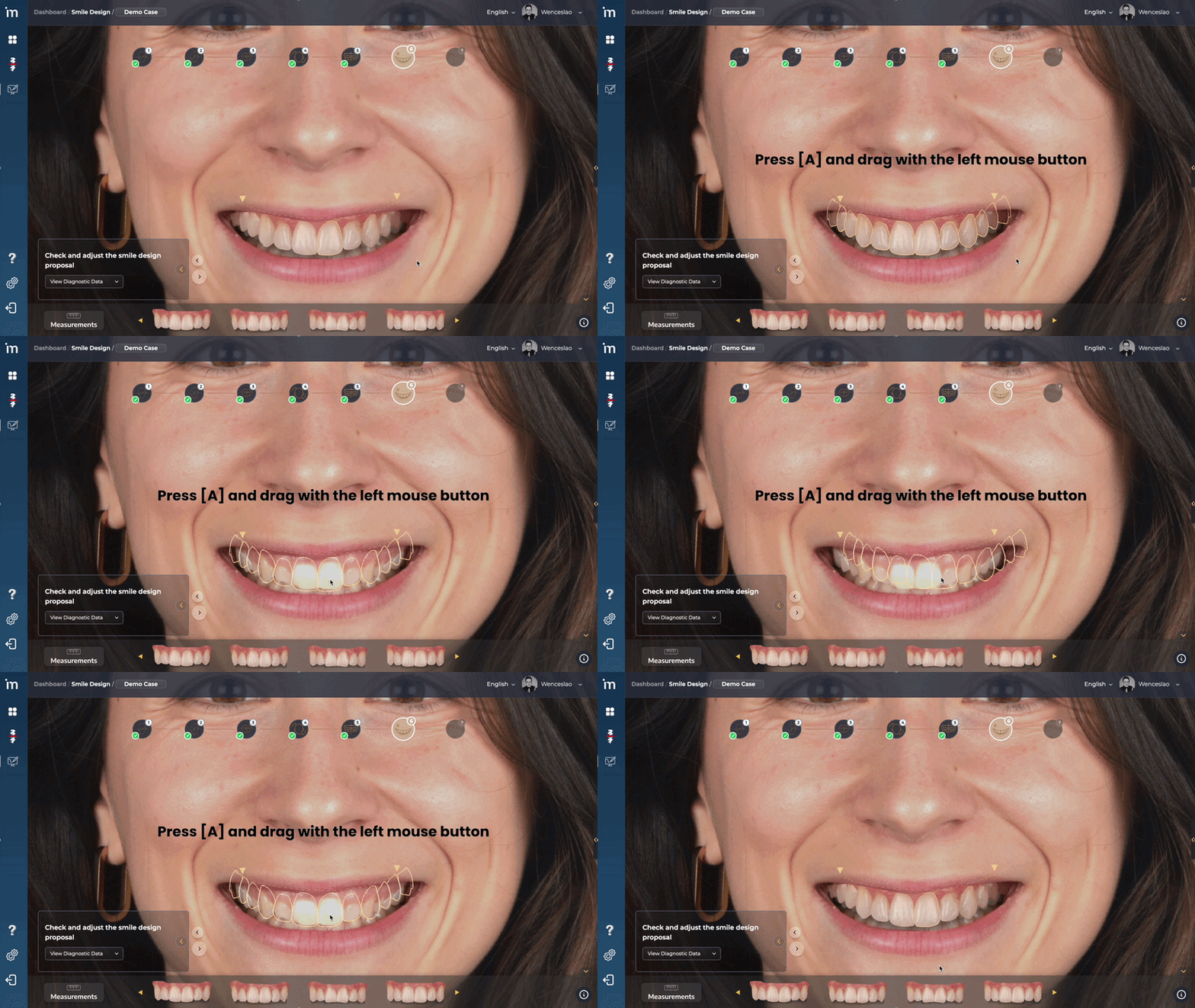
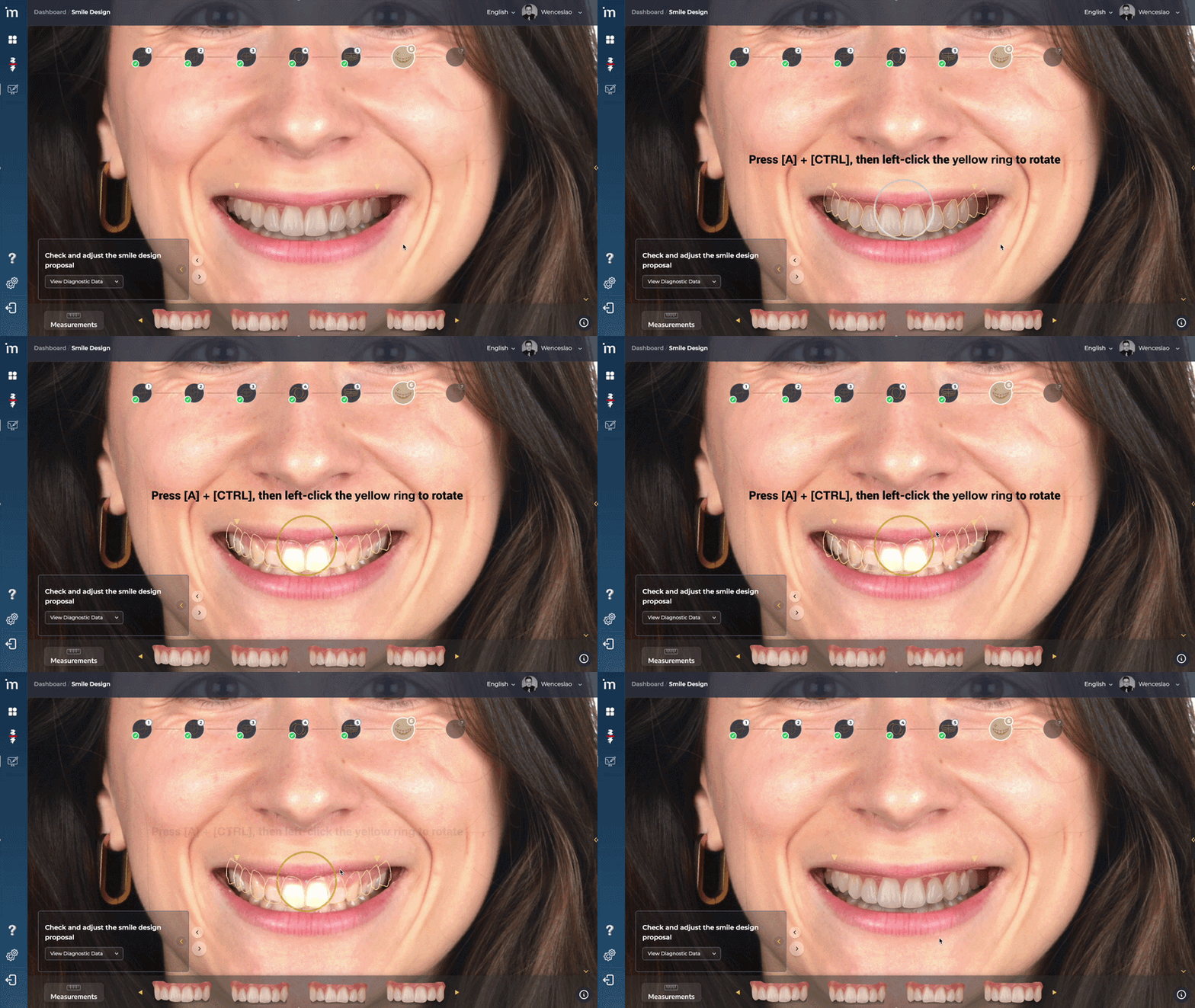
If you need move all the teeth as a whole in mesiodistal sense, you must hold down the key at the same time [A]and Ctrl. By positioning the mouse over the rotation ring, it will turn yellow and allow you to rotate all the teeth.
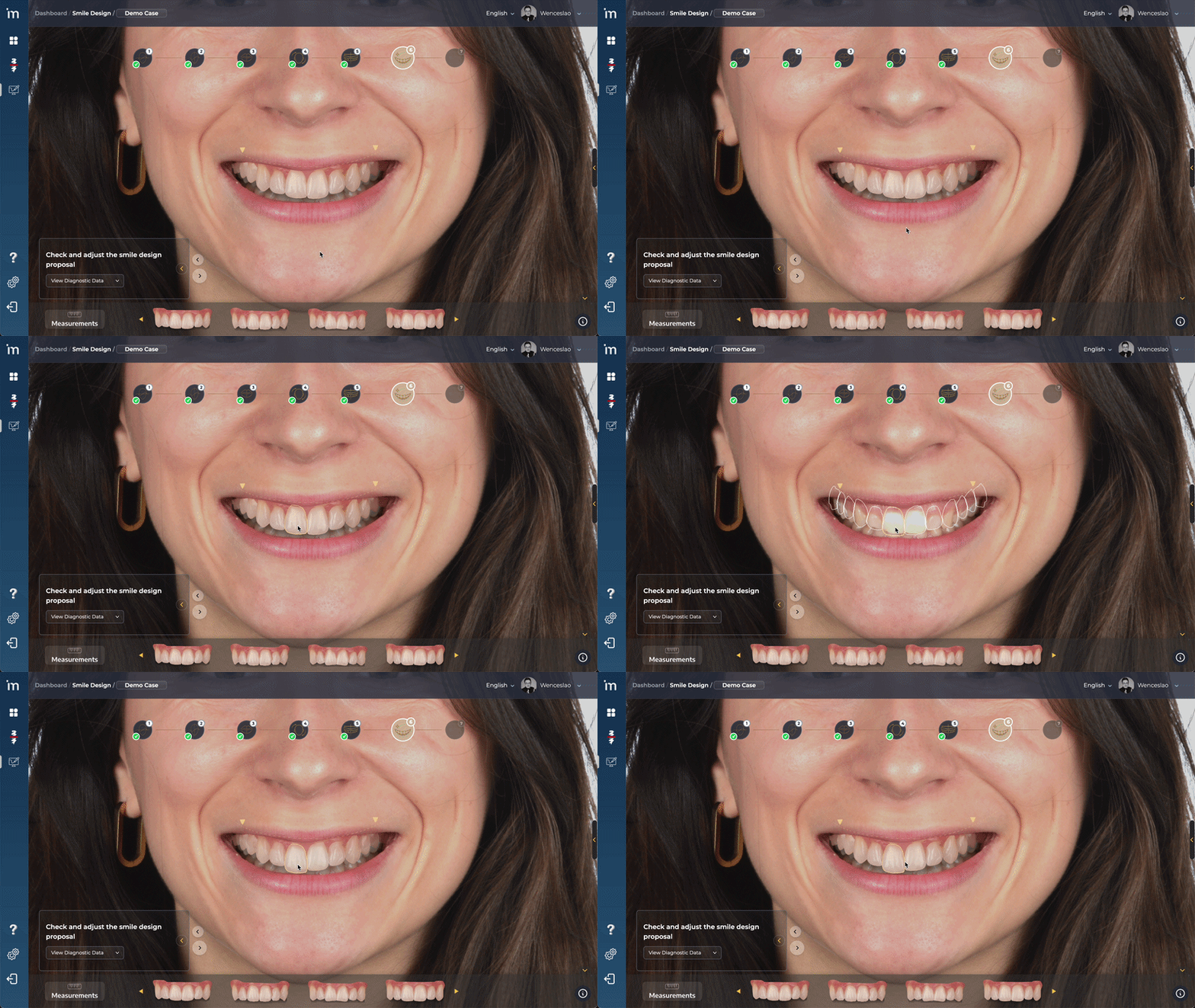
To move a tooth individually, hover over it until it is highlighted in yellow and drag it with the left mouse click.
2️⃣ Change Tip and Torque
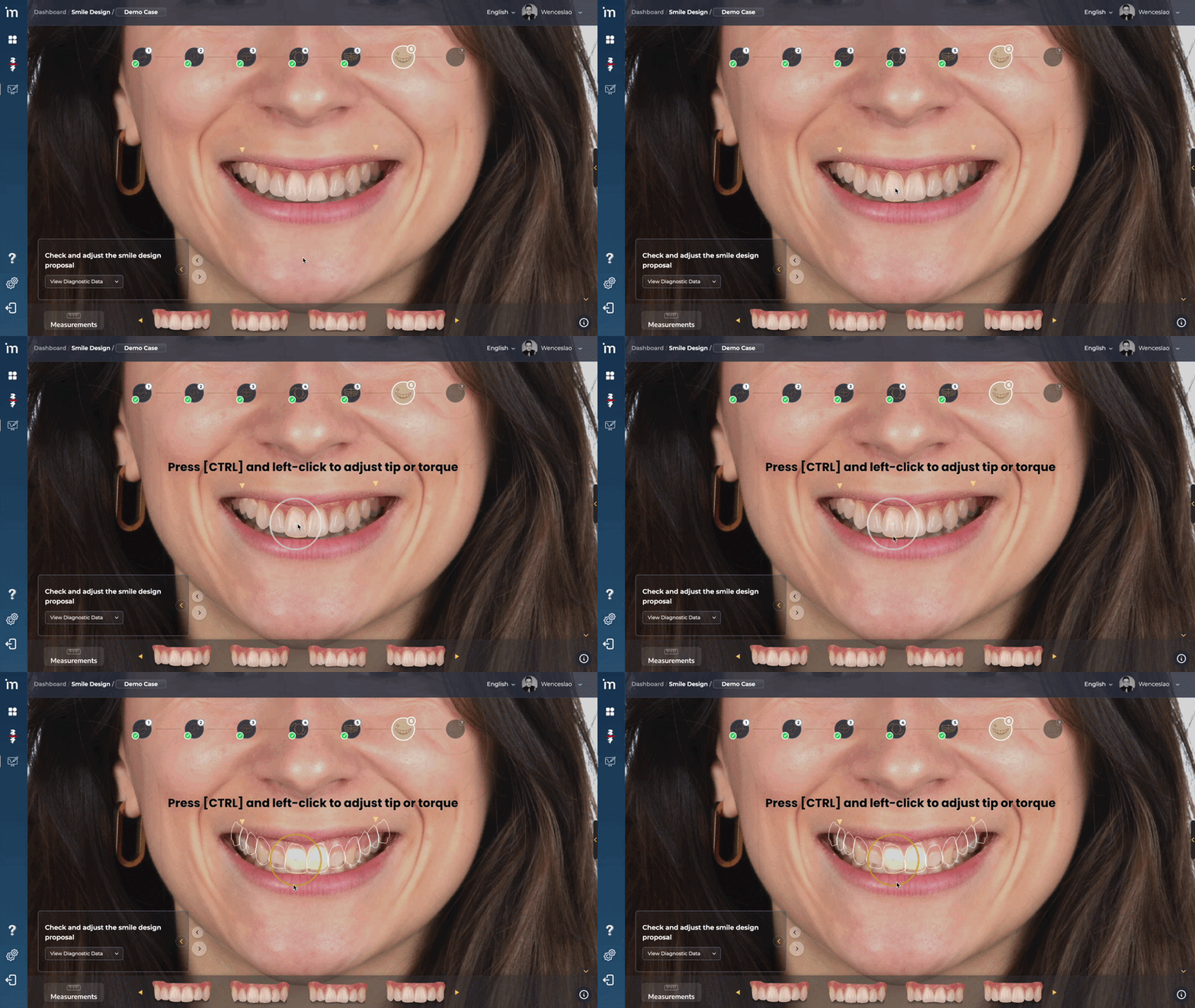
Position yourself on a tooth and Press the Ctrl key to activate the rotation ring. When you hover over the ring, it will be highlighted in yellow; left click and adjust the tip or the torque depending on the tooth, whether it is from the anterior or posterior sector.
3️⃣ Free 3D rotation
If you want to move a tooth in 3D, you must click on it and press the Ctrl key. The gray rotation ring will be activated. From that moment on you will be able to move the selected tooth freely in 3 dimensions with the mouse or trackpad.
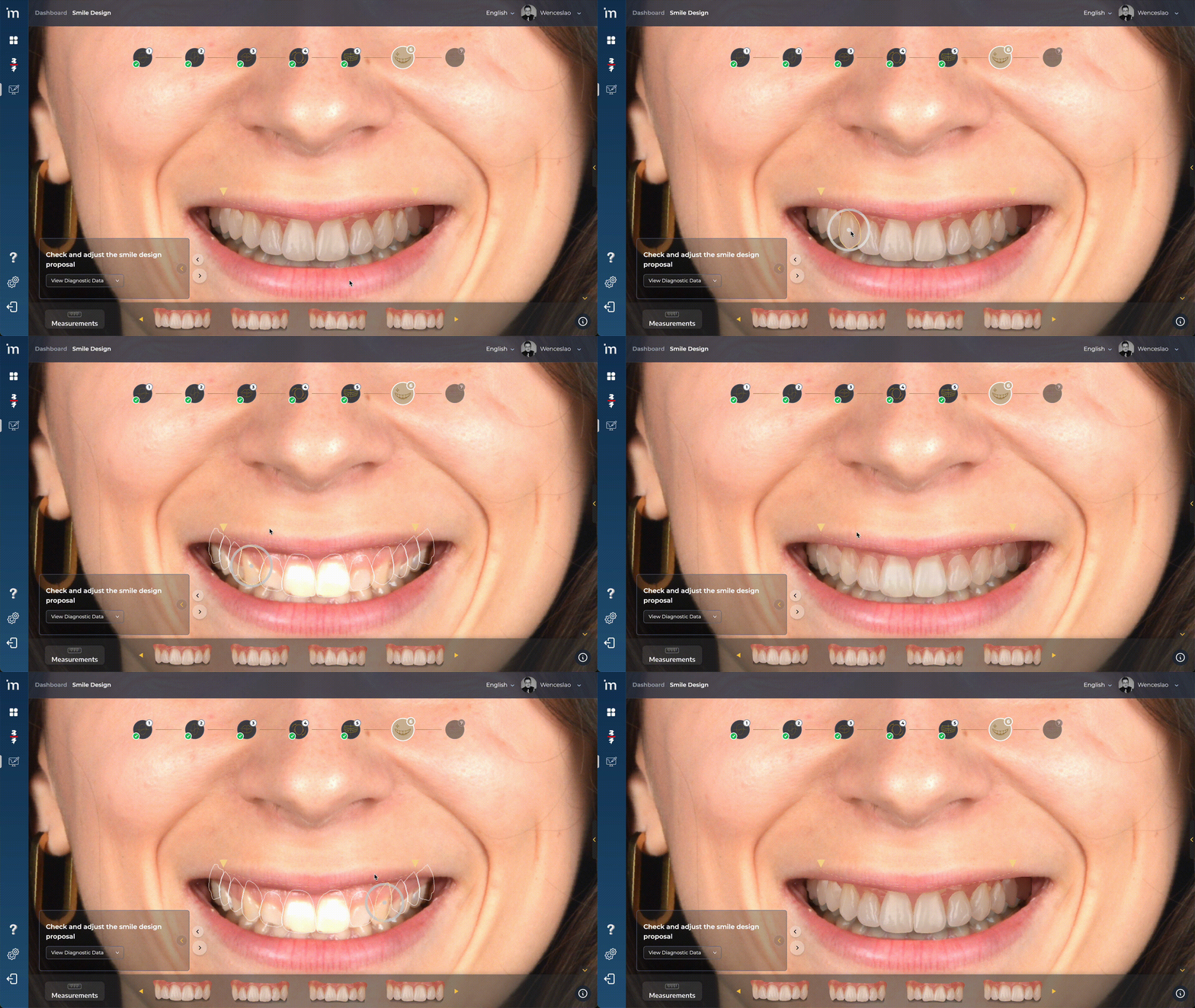
If you need freely rotate all teeth in the 3 dimensions of space As a whole, you must hold down the key at the same time [A]and Ctrl. The rotation ring will appear in gray. While the ring remains gray, left click and drag with the mouse to rotate the set of teeth freely.

4️⃣ Modify Teeth
If you need lengthen/shorten o widen/narrow teeth, you must position the mouse on the contour of the tooth you want to modify until the contour is blue. Left click and drag the mouse to modify the tooth.

5️⃣ Climb
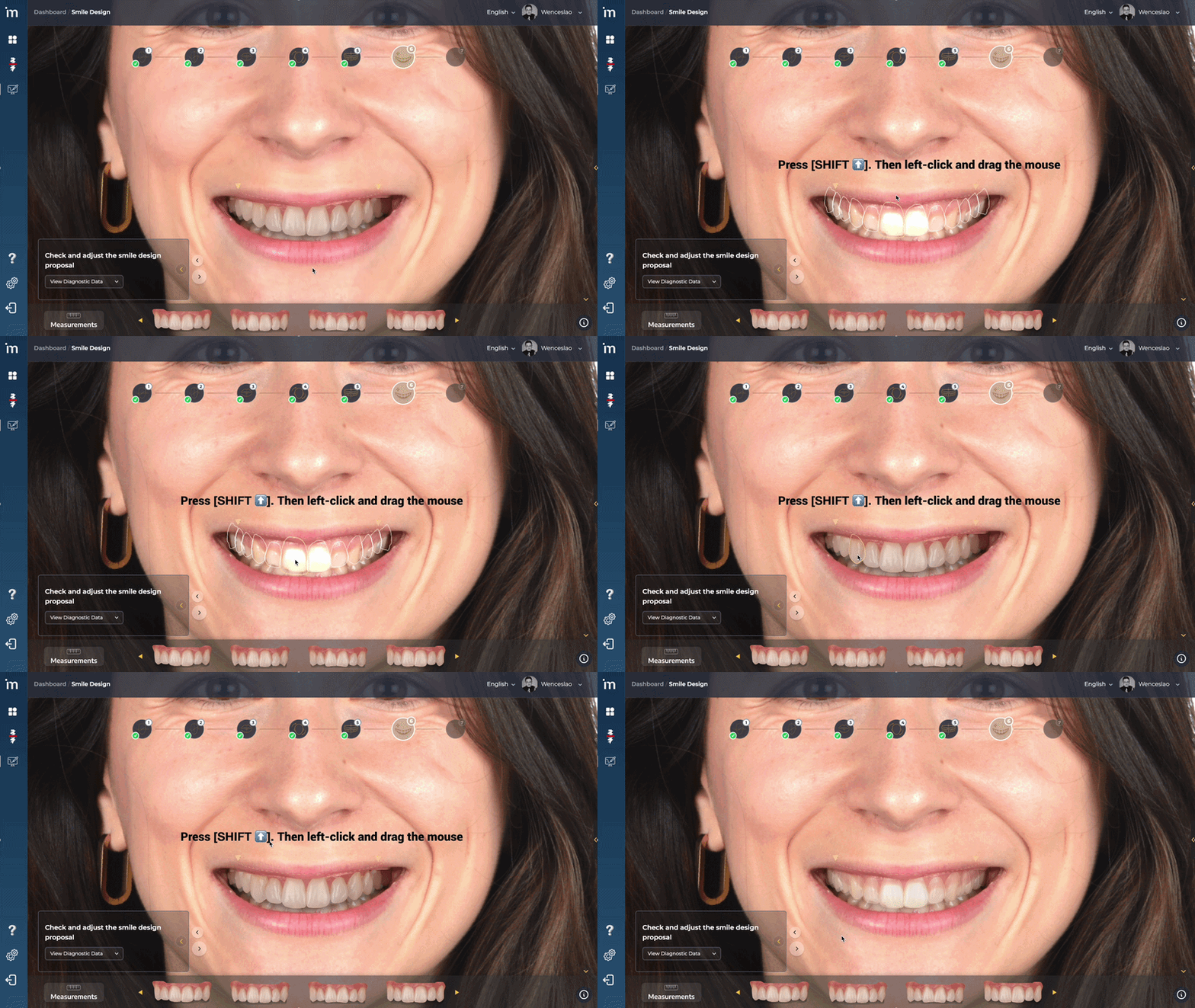
To scale a tooth individually, position the cursor over the tooth until its outline lights up yellow. Then press and hold the key Shift ⬆️. Without releasing it, left click and drag the mouse to scale the tooth proportionally.
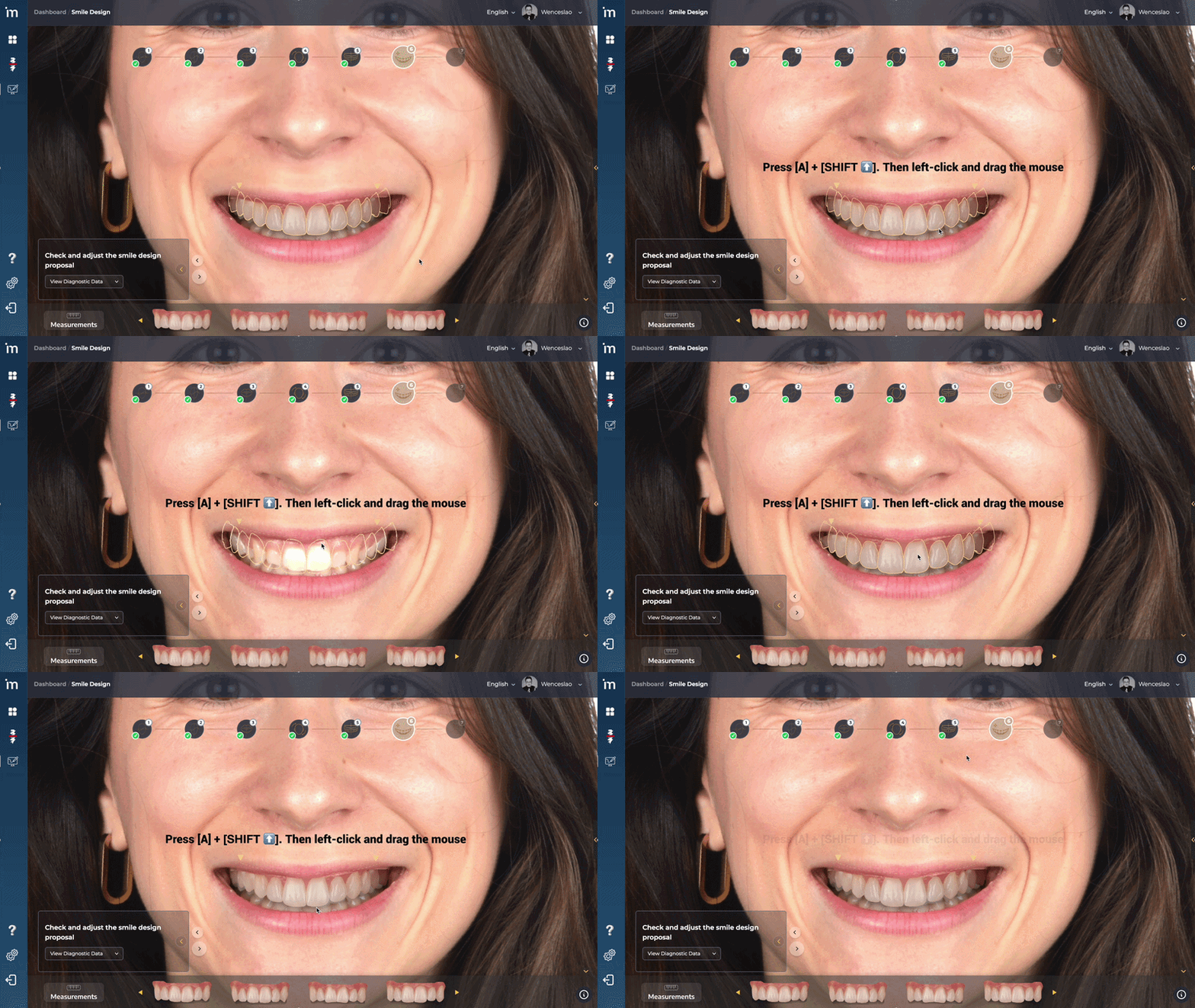
If, on the other hand, you want to scale all the teeth simultaneously, you must hold down the key simultaneously.[A]y Shift ⬆️. Then, left click and drag the mouse to scale the tooth proportionally.
Quick Guide
| Aim | Mouse | Key combination | visual indicator | Action |
|---|---|---|---|---|
| Move all en masse | Position the cursor over the teeth | A |
yellow tooth | Left click and drag |
| Rotate all (mesiodistal) | Position the cursor over the ring | A+Ctrl |
yellow ring | Left click and drag |
| Move individual tooth | Position the cursor over the tooth | — | yellow tooth | Left click and drag |
| Aim | Mouse | Key combination | visual indicator | Action |
|---|---|---|---|---|
| Adjust torque tip | Position the cursor over the tooth | Ctrl |
yellow ring | Left click and drag |
| Free 3D rotation — individual | Click on the tooth | Ctrl |
gray ring | Drag freely in 3D |
| Free 3D Rotation — all | Position the cursor over the ring | A+Ctrl |
gray ring | Drag freely in 3D |
| Aim | Mouse | Key combination | visual indicator | Action |
|---|---|---|---|---|
| Modify contour (lengthen / widen) | Position the cursor over the contour of the tooth | — | blue outline | Left click and drag |
| Scaling individual tooth | Position the cursor over the tooth | Shift |
yellow tooth | Left click and drag |
| Scale all teeth | Position the cursor over the teeth | A+Shift |
yellow tooth | Left click and drag |
➡️ Continue to Tooth Library