
The Smile Design algorithm MovumStudio® It is capable of aligning the STL of the upper jaw with photographs automatically.
Automatic alignment will work better the more common dental references there are between photography and STL.
It is expected that the alignment achieved between STL and photographs with multiple missing teeth or in patients with a low smile will require manual alignment refinement.
The tool management controls are detailed below:
1️⃣ PAN Movement
Left click on the STL and drag the cursor to move it as a block. When you release the button, it will remain fixed in the selected position.
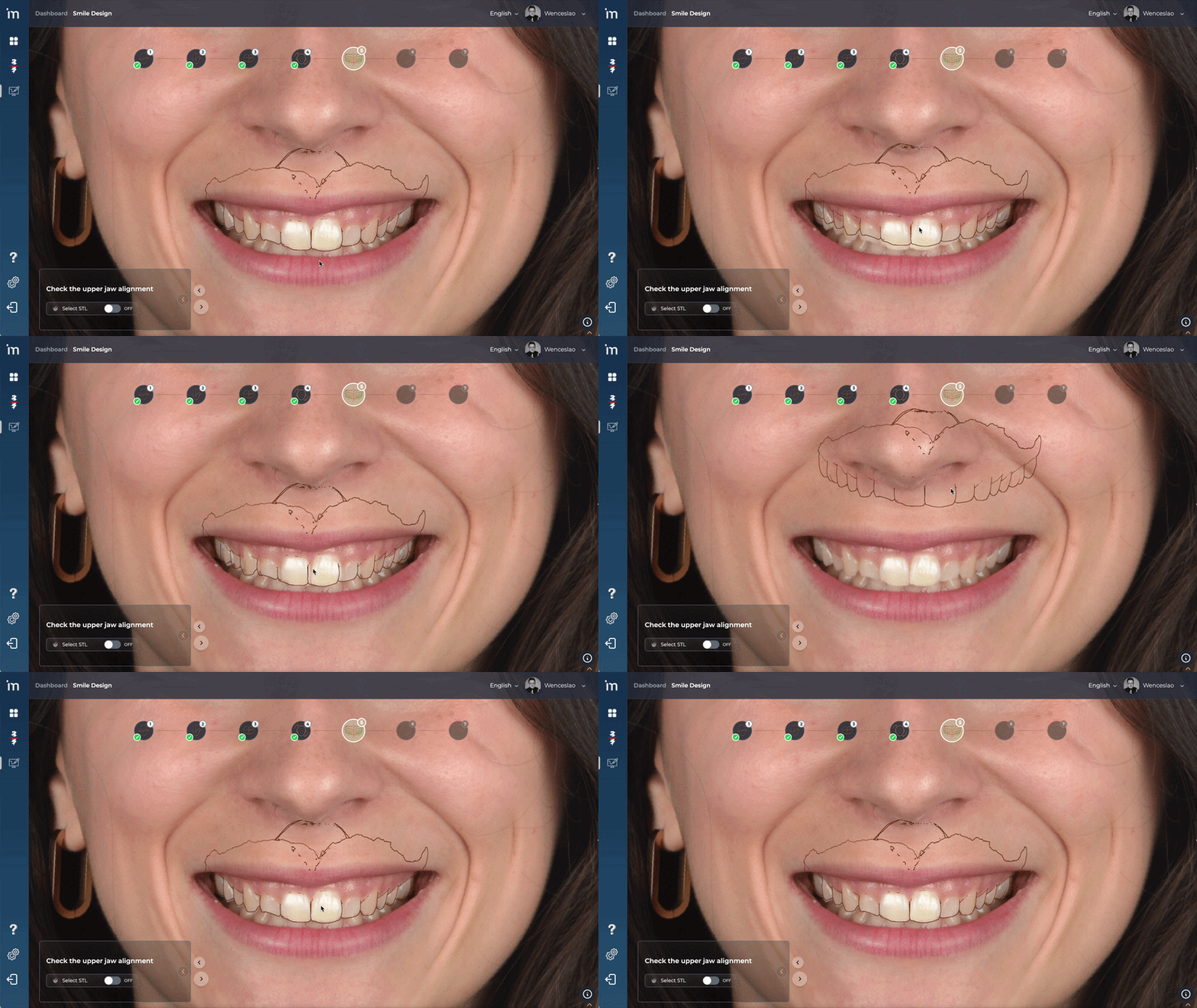
If clicking on the STL moves both the photograph and the model, it is because the AI cannot differentiate between both elements.
To avoid this, activate the button located at the bottom left of the wizard. This will allow only the STL to be moved.
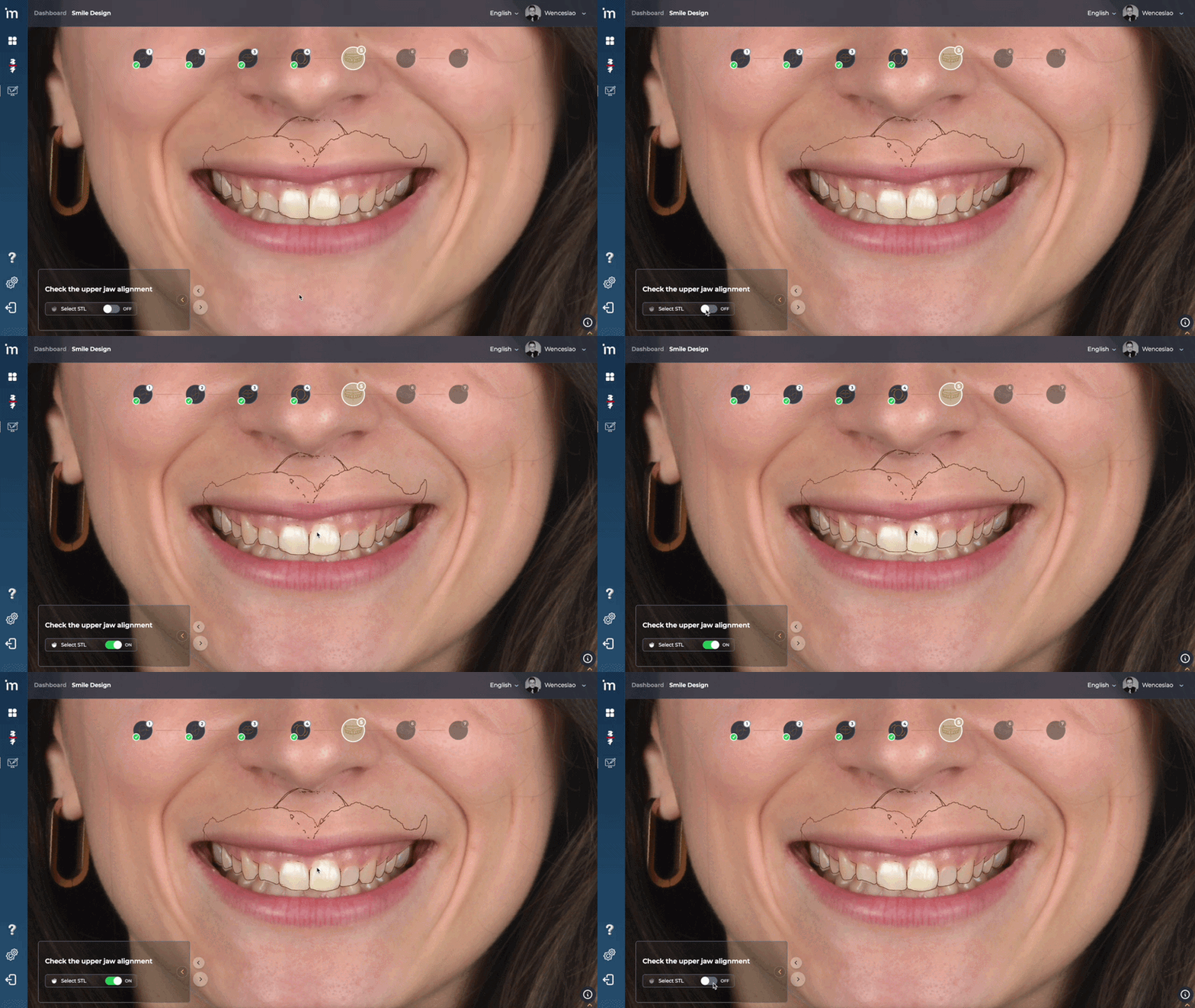
2️⃣ Activate Control Tool
Click the Ctrl key on your computer keyboard. A gray ring will appear on the scene.
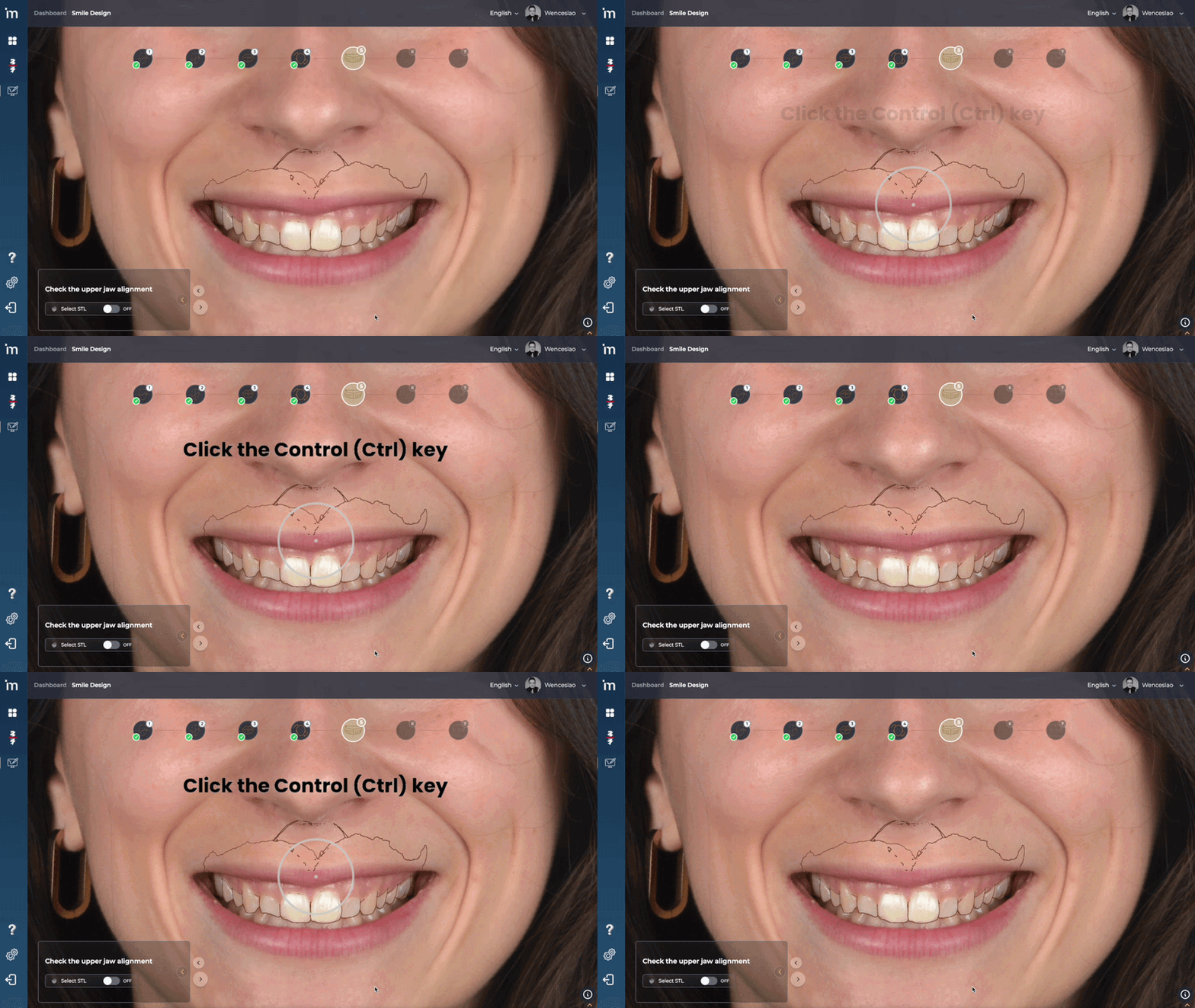
3️⃣ Mesio-Distal Rotation
Hold down the Ctrl key and place the pointer over the gray circle. When it changes to yellow, left click (without releasing Ctrl) and rotate the STL mesiodistally.
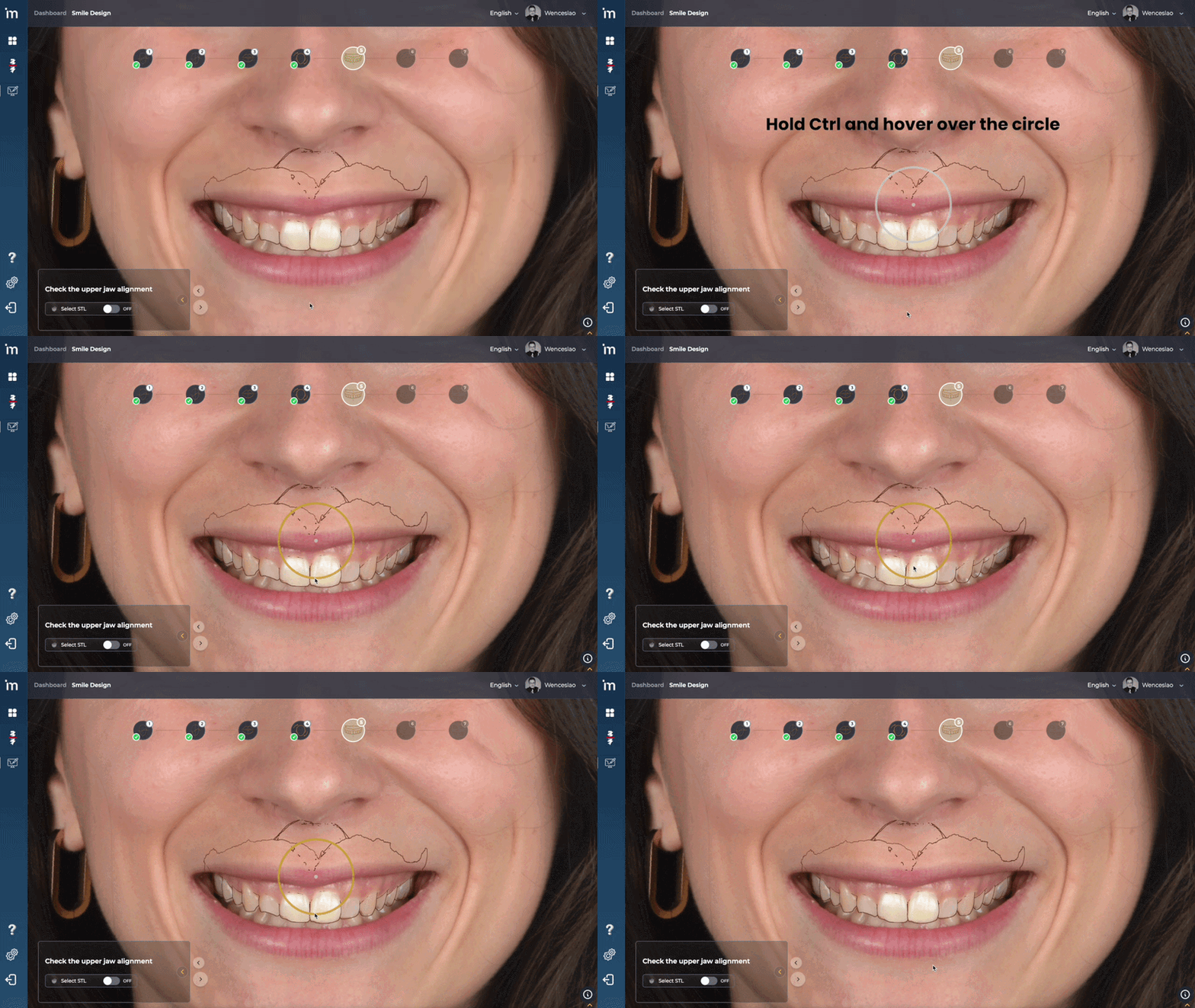
4️⃣ 3D Rotation
To rotate the STL on all 3D axes, hold down the Ctrl key and place the mouse cursor outside the gray circle. Then, left click and drag to move the STL in any direction you want.
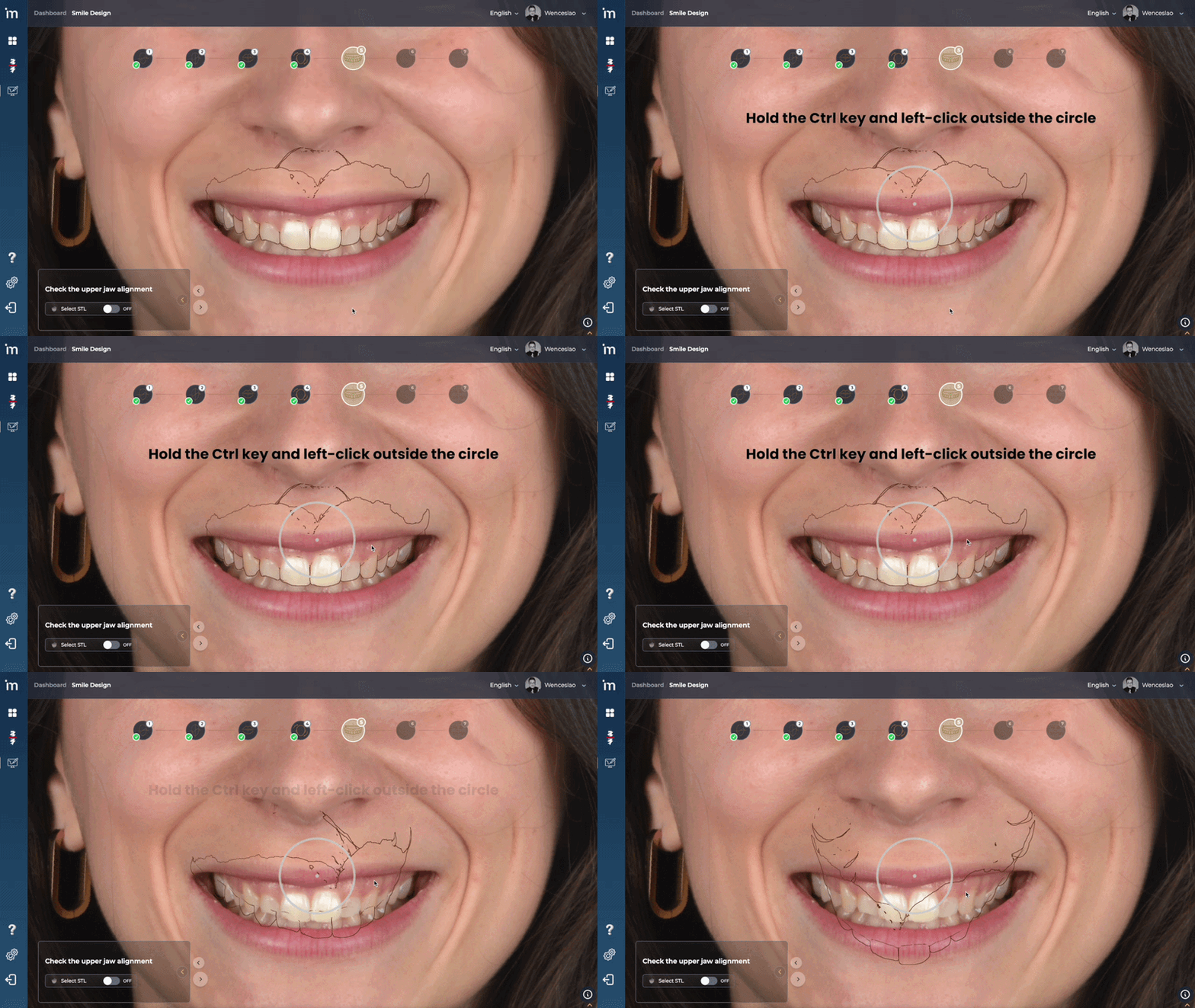
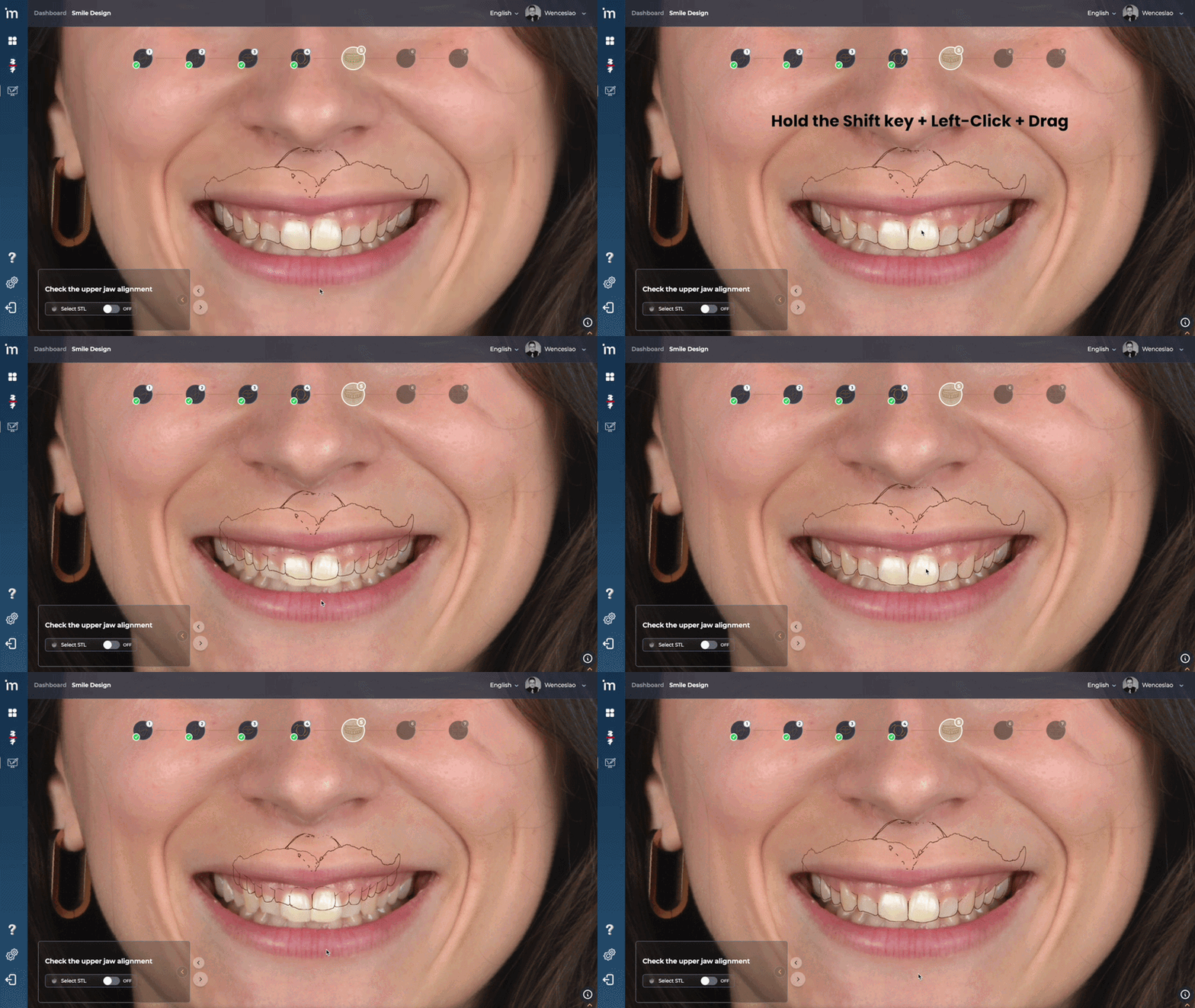
5️⃣ Modify STL Size
In the event that the STL appears very large or very small in the scene, it is possible to modify the size by clicking the Shift key on the keyboard + left mouse click + dragging the mouse.
Click the forward arrow.
Quick Guide
| Aim | Mouse | Key combination | visual indicator | Action |
|---|---|---|---|---|
| Move STL in block (PAN) | Left click on the STL | — | — | Drag the cursor |
| Rotar STL (mesiodistal) | Place the cursor over the STL | Ctrl |
yellow ring | Hover over ring and rotate |
| Mover STL and 3D | Place the cursor over the STL | Ctrl |
gray ring | Left click outside the ring and move |
| Modify STL size | Position the cursor over the STL | Shift |
— | Left click and drag |
➡️ Continue to Controls