Step by step
The key in a Smile Design is to correctly carry out a facial analysis in order to be able to carry out correct facially guided planning.
The first thing is to determine the Horizontal Reference Plane.
On this first screen, our algorithm will automatically detect the bipupillary line and it will rotate the image the degrees necessary to adapt the photograph to the plane.
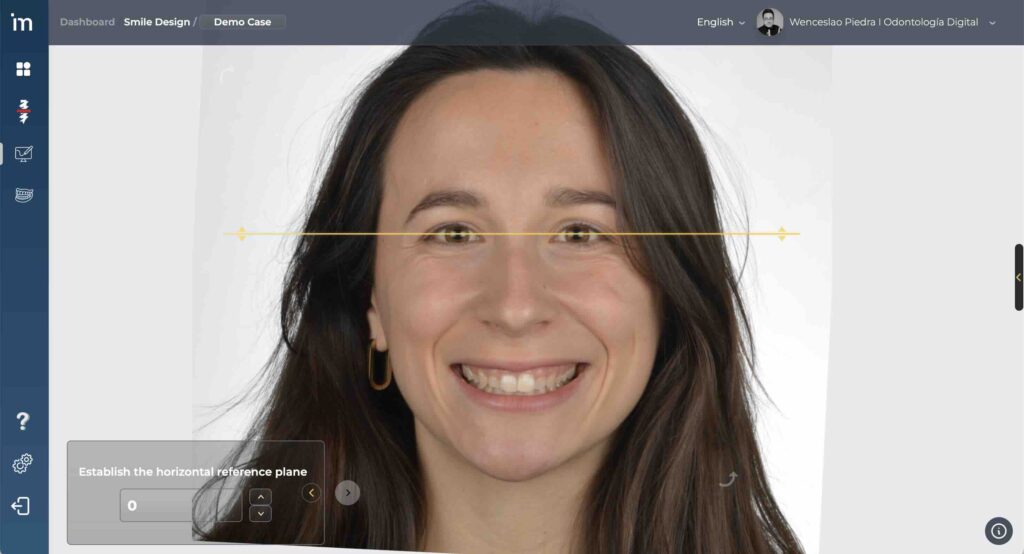
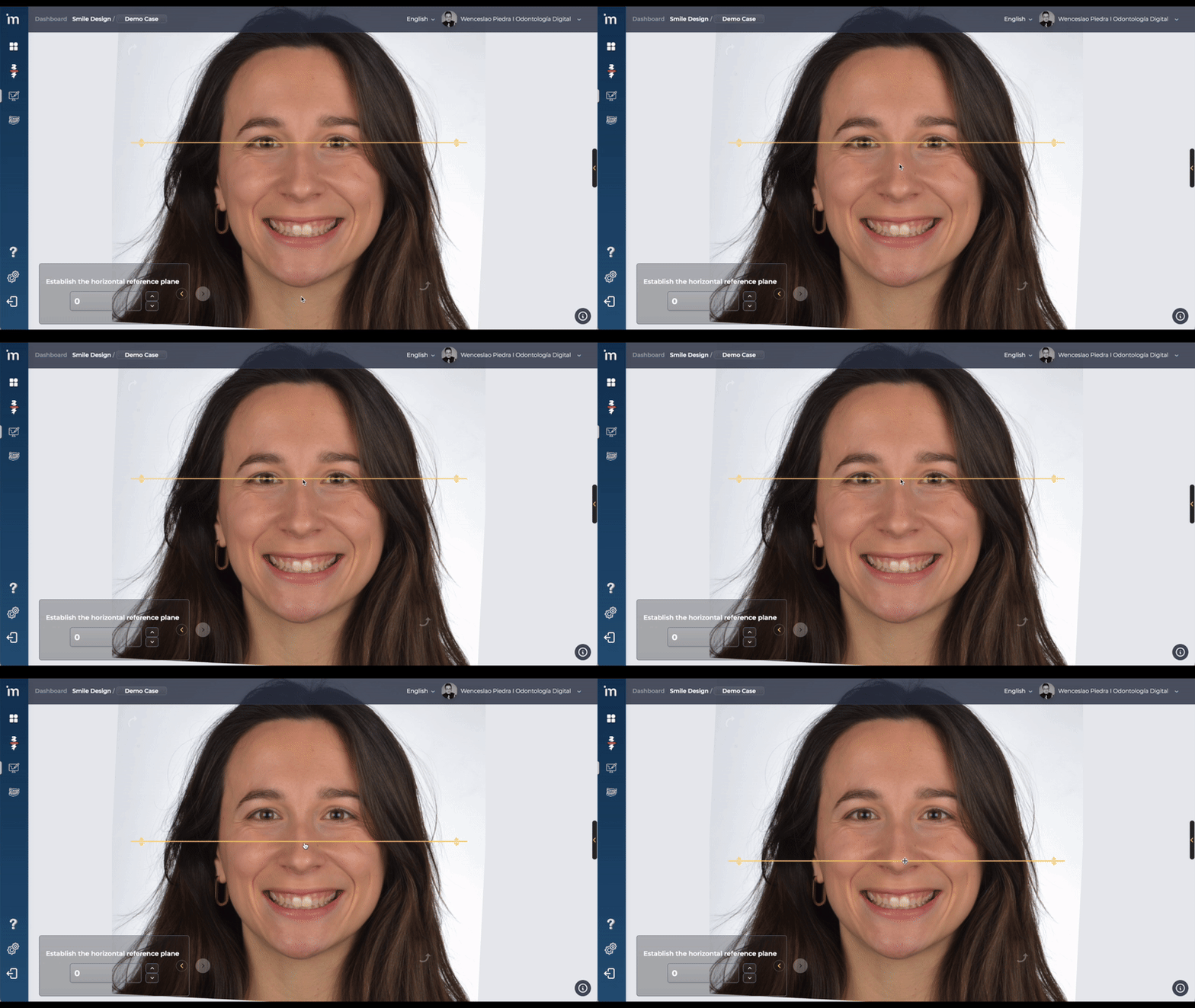
However, the Horizontal Reference Plane It can be adjusted manually if the horizontal reference plane for the patient does not correspond to the bipupillary line.
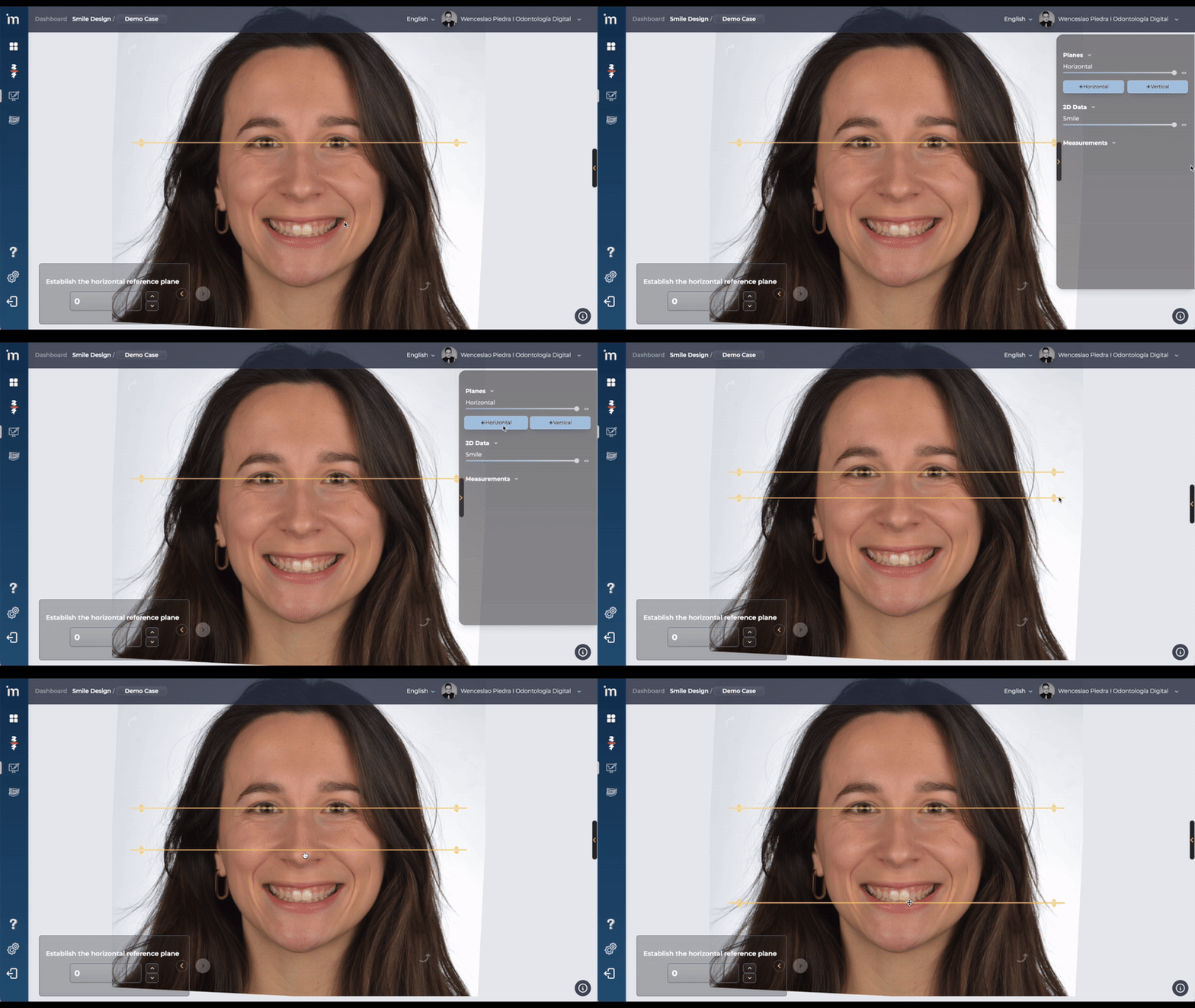
By clicking with the left mouse button on the horizontal reference plane you can move the line and position it where you deem necessary.
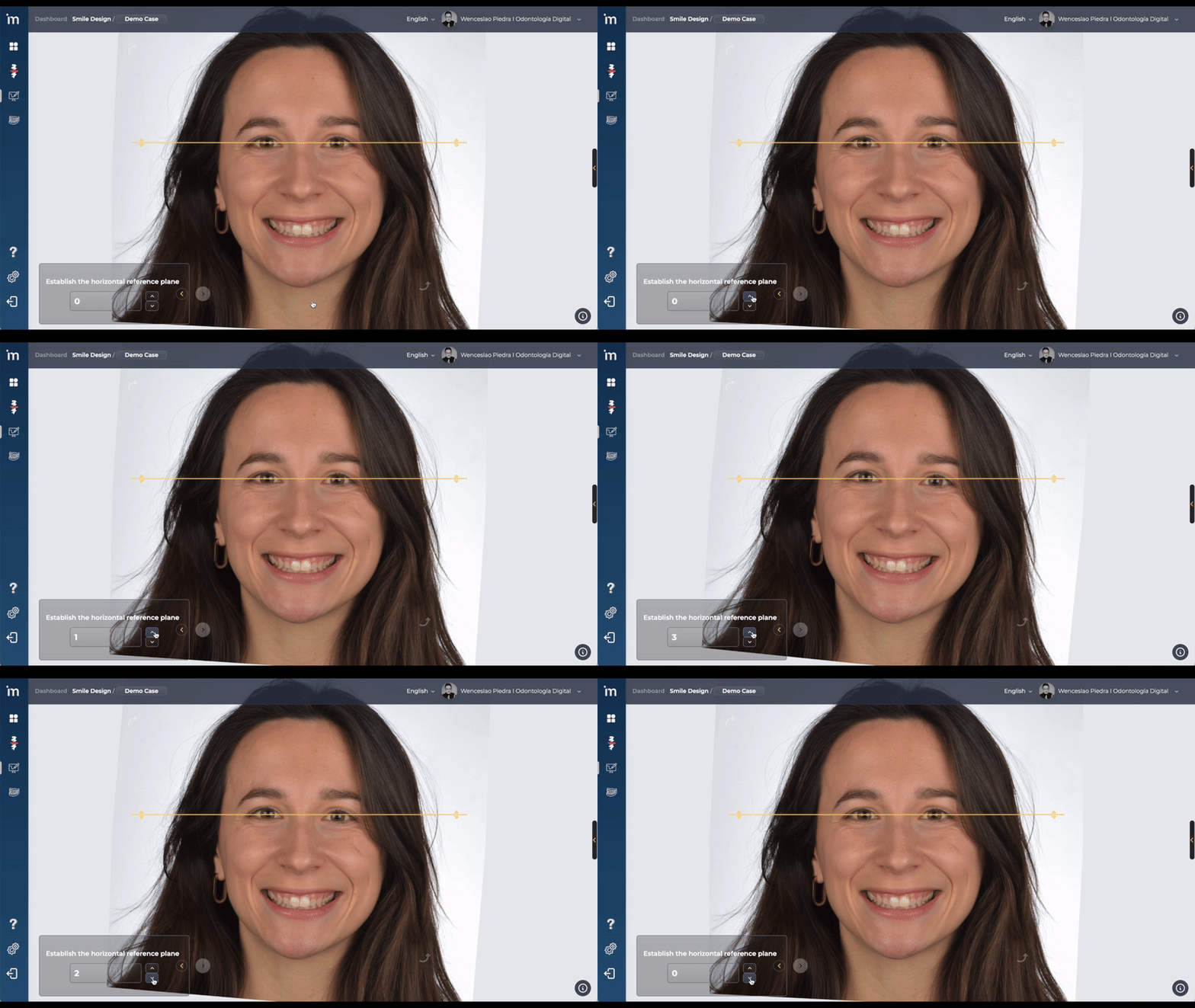
You can also rotate the image by the necessary degrees to adjust the anatomical landmarks to the Horizontal Reference Plane.
Enter the rotation value with decimals separated by a comma. You can also change the value by clicking on the arrows, which increase or decrease the rotation value of the photo from degree to degree.
Additional Horizontal Planes
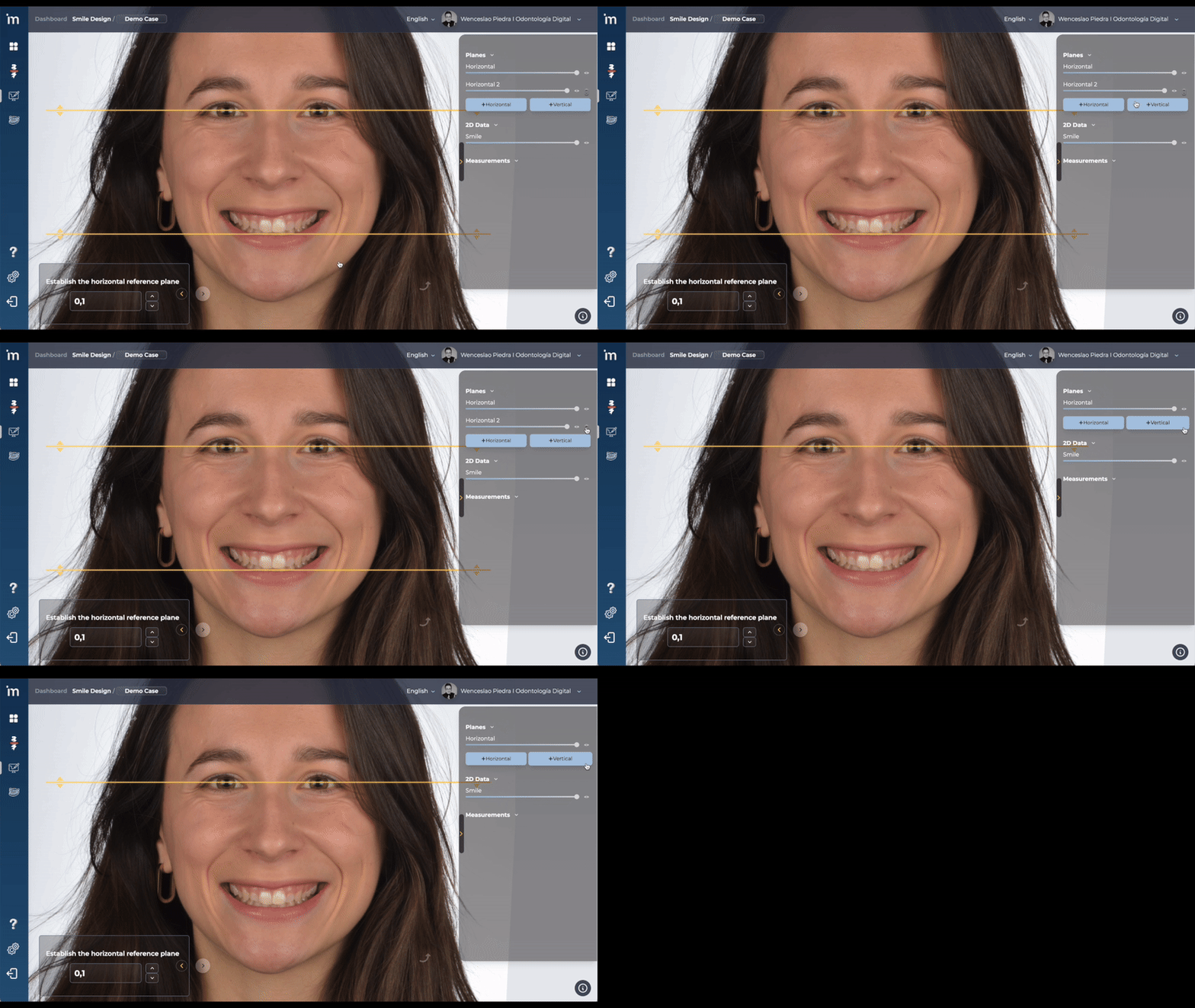
You can add one or more additional horizontal planes as you need. These plans allow you to establish extra references for a more precise analysis.
Keep in mind that any additional plans you create will always be parallel to the Horizontal Reference Plane defined at the beginning of this screen. You can add as many as you consider necessary for your planning.
On the right side of your screen there is a drop-down menu that throughout the case allows you to add or delete elements as well as control their opacity or visibility. On this first screen, you can add additional horizontal lines by clicking +Horizontal.
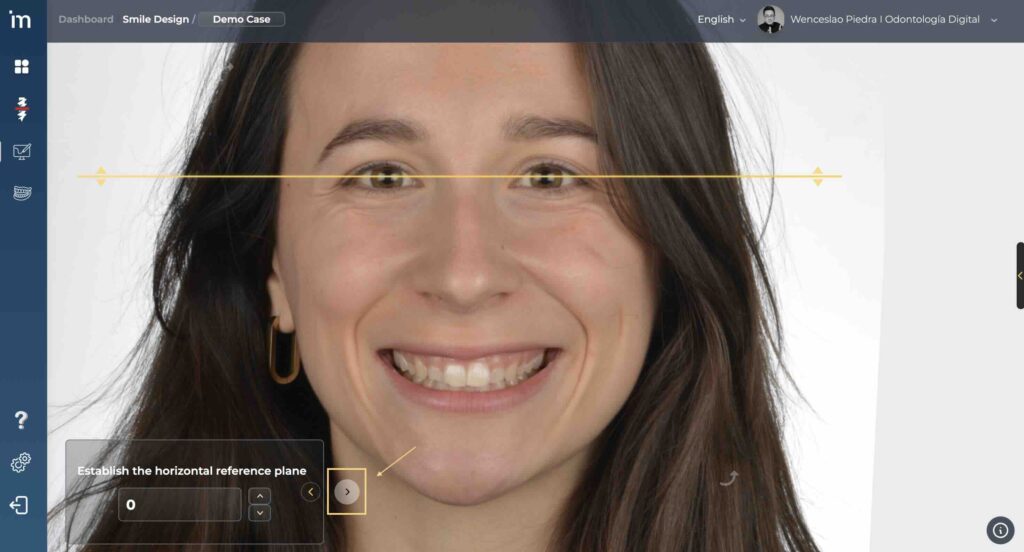
Click the forward arrow as shown in the image below to move to the next step.
➡️ Continue to Facial Midline.
ℹ️ FAQs
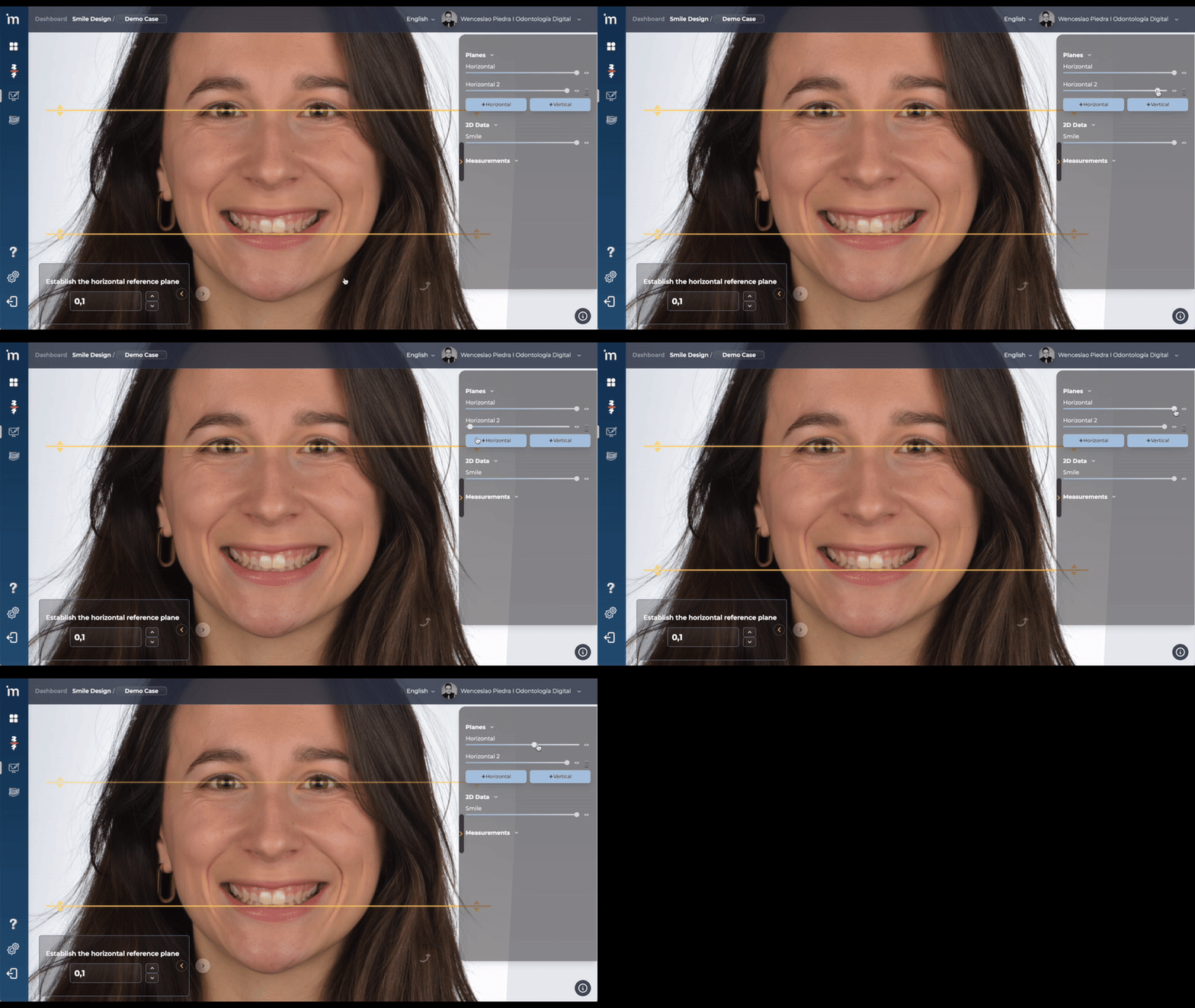
1. Can the opacity of horizontal lines be changed?
Yes, the opacity of the lines can be controlled by moving the slider corresponding.
2. How can I hide the horizontal lines?
The lines can be hidden and unhidden by clicking on the eye icon ️ ️
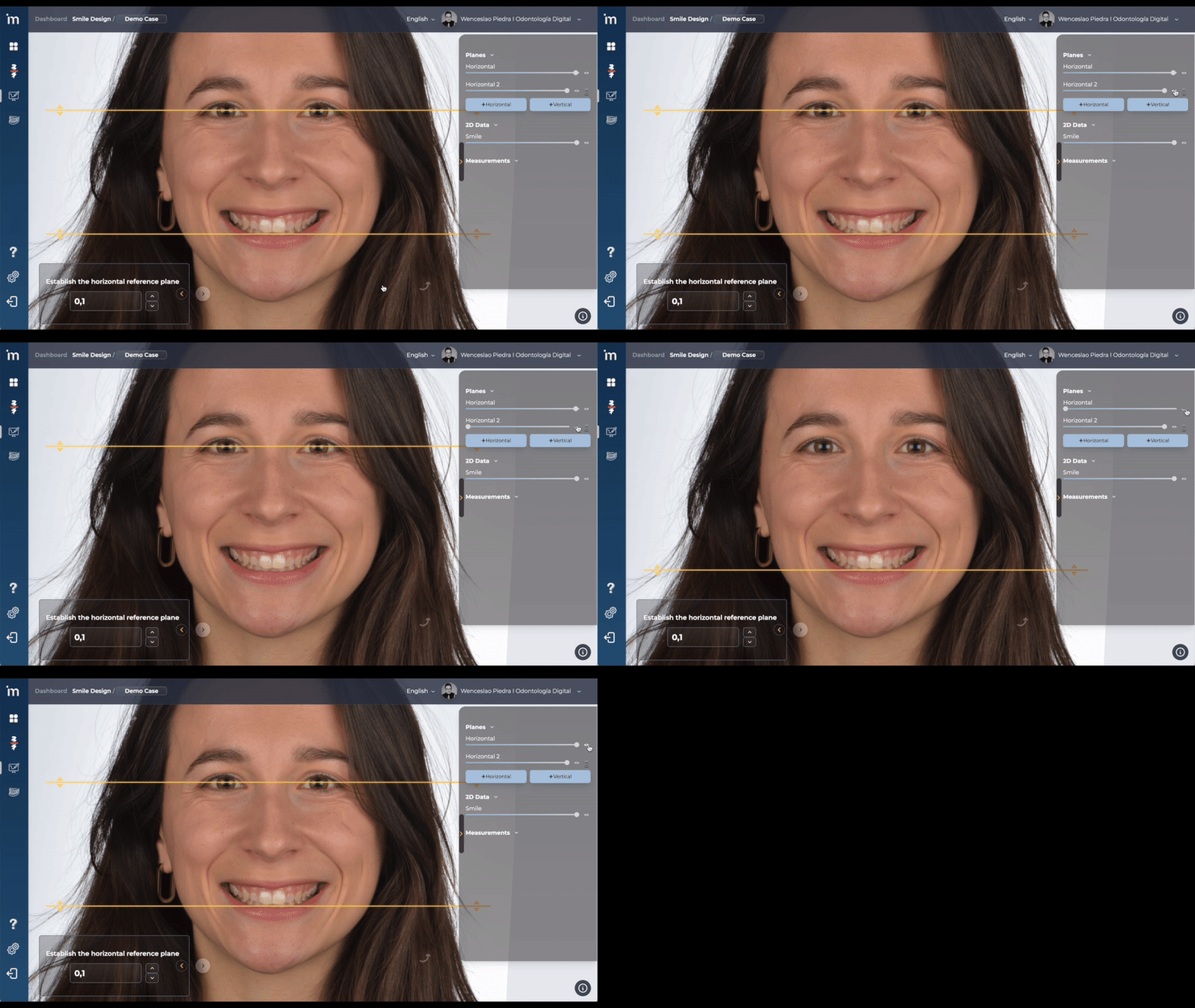
3. I made a mistake and want to delete an extra horizontal line I created. Can it be removed?
Yes, if you want to delete an additional horizontal line or lines, click the trash icon[ ️].